Off road navigation (route and single target)
From version 1.7, the app can help you navigate not only to a single target, but also along a route of multiple points.
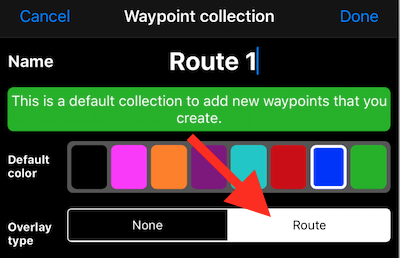
For navigating to a single target, just create a waypoint to navigate to, as always. For route navigation, you can either create a route in the app itself or import a GPX route (rte). Every collection of waypoints in the app can be easily transformed to a route by simply changing the collection type to a “Route” one:
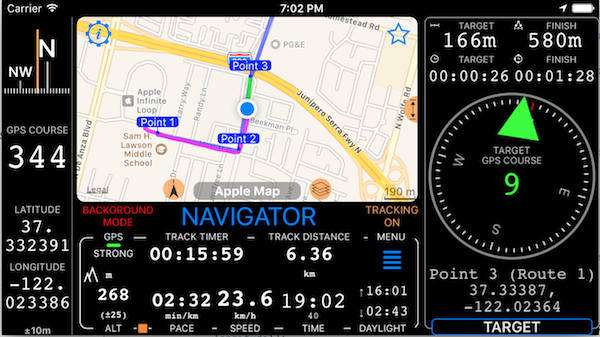
When navigating along the route, the app shows you the distance to the current target and the total distance and ETA to the end of the route:
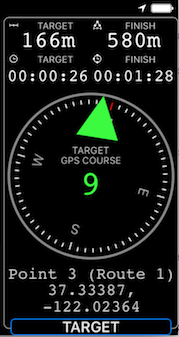
Use the “TARGET” button to switch between route points or to a new target, change your navigation settings, or stop navigation altogether:

To access navigation settings, tap on the settings button in the top left corner of the navigation options menu. Here is what you can control:

Voice - if on, provides you with turn-by-turn voice guidance even when the app is in the background (tracking needs to be ON to stay working in the background).
Vibrate - vibrates for important events like approach, turn-by-turn, or off-course hints.
Off course hints - when on, the app will announce the distance to the target and current direction to it whenever your course starts to differ from the expected one, plus/minus within tolerance.
Automatic check-in - allows the app to automatically switch between waypoints on the route and complete your navigation at the last point. Check-in happens by approaching and leaving the point within a distance window. The window tolerance depends on speed and other parameters.
By default, all of the above options are OFF, so the app will not bother you with anything extra unless you explicitly command it to do so.
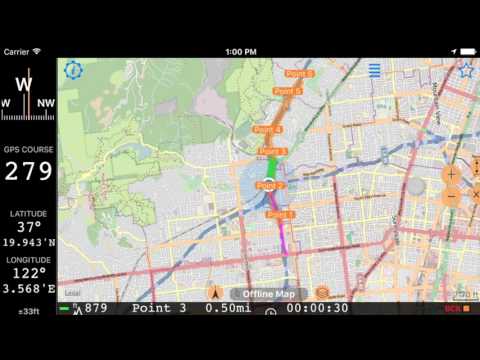
Video review for how navigation along the route works:
Video preview of route navigation
More information:
A bit longer, narrated video on creating or importing the route
