Version 1.5.3. What's new?
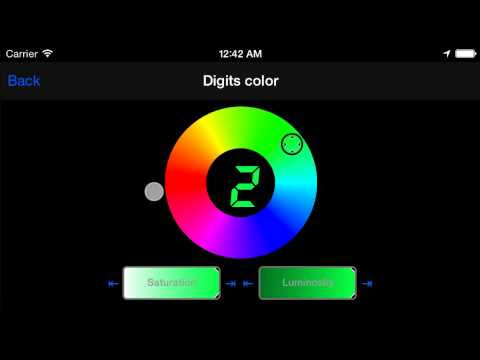
Millions of speed colors.
Ability to setup speed digits to any color. Hold finger on adigit in “Advanced settings”>“Speed colors” or"Heads-up and full screen options"

to open a color picker:

Speed colors - video tutorial
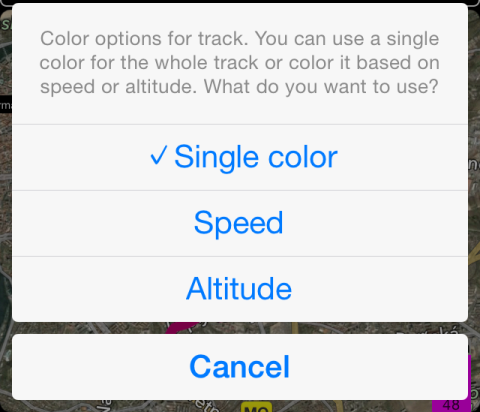
Tracks colored by speed or altitude.
Recorded track can be shown on a map colored by speed or altitude. Tap on a violet box with min, average and max speed values to open track coloringoptions.

[ ](../../../en/speedometer/v153/photo 2.PNG)
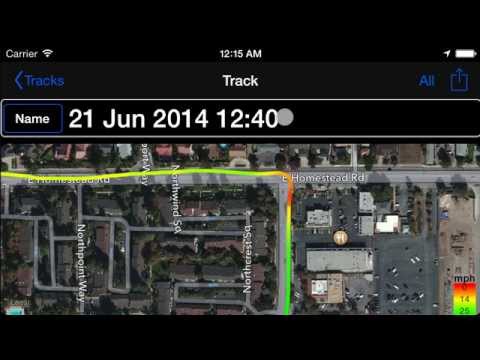
Here is how speed colored track looks like:

And the same track, colored by altitude:

*#### Track color by speed or altitude - video tutorial ####
 *
*
Infotainment.
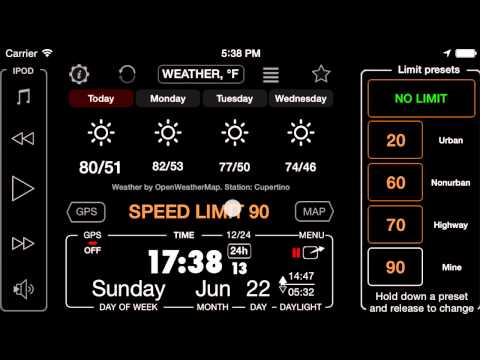
You don’t have to look at zero speed when waiting on traffic lights or in a jam anymore! Weatherinformation, trip stats and twitter timeline information can be shown. Enablevia “Advanced settings” > “Zero speed and NO GPS” > “Showinfotainment”:

Pick “YES” and use extra settings button there provides options for a granularinfotainment setup, if needed.
Next time when you stop on lights or get stuck in a jam, speedometer can show you trip stats:

As you can see my current commute was 29 minutes and from that only 17 minutes I was driving, 11 minutes lost on lights and “jams”! No more looking for 11 minutes at zero speed display for me! Instead, speedo shows weather forecast by hour:

Weather forecast by day (of course you can switch to Fahrenheit, just tap on that WEATHER button):

Wind forecast by hour and day (showing only by hour here):

In infotainment settings you can pick which twitter account to use for an infotainment slideshow.
When infotainment is shown, you can tap on it with two fingersto pause, remove or set it up. You can also swipe on infotainment left or rightto change between information slides. Weather and twitter require internetconnection, but consume only very moderate amount of data.
Infotainment - video tutorial on Youtube
Notification about GPS non-activity.
Speedometer can now notify you when you left it tracking onjust working in background and there was no GPS activity for a longer time. Setin “Advanced settings” > “Zero Speed or NOGPS”>“Background mode notification”.

Here is how notification looks:

It is accompanied with a sound and I tried to make it unique! :).
Full screen.
Double tap on numbers in heads-up screen to revert to a fullscreen.

For bigger speed digits, rotate to a landscape. Swipe on a full screen will switch to the next/previous speed limit preset. Holding your finger on speed numbers will open a menu with more options:

“Mirror numbers” switches back to a HUD mode, you can also just double tap on speed digits to do it. More on a “Night mode” below. “Extra” gives ability to show time or altitude on the full screen.
More options for Heads-up screen.
Use a landscape mode to make speed digits bigger. Swipeleft/right to switch the speed limit. Hold your finger on digits to open menuwith more options.
Full screen mode and new heads-up options review on Youtube
Night mode.
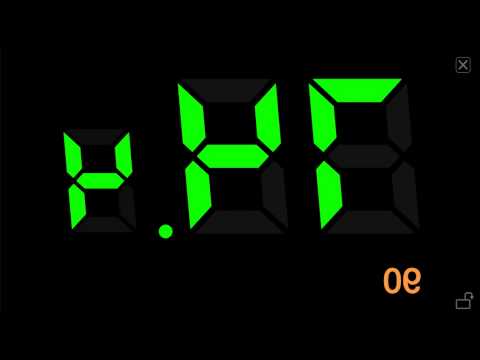
Main screen, heads-up and full screen now support a nightmode. Available either via “Advanced settings” > “Night mode” or just holdyour finger on speed digits until menu opens with night mode options. You canforce ON and OFF as well as let speedometer apply the night mode automatically,based on sunrise and sunset times.
New GPS tracking options.
-- GPS tracking is extended with an option to avoidrecording optimizations (“Advanced settings”>“GPStracking”>“Optimize recording”). Optimization is on bydefault and helps to minimize the track data size while still keeping it verysmooth and detailed on a map. This is quite sufficient for most of the regulardriving scenarios, but might be undesirable for sports related activities whereevery point might be a significant one.
-- You can now avoid picking the tracking mode (GPS journalor statistics only) on each track start by –setting you preference in “Advancedsettings”>“GPS tracking”>“Preferred Tracking Type”.
-- New Google Earth export format added - gx:track. Thatallows to “re-play” the track in Google Earth with its speed datashown side by side with the “elevation graph” (tab"speed-r").
Zero speed inclusion in average speed.
Speedometer has now two options to calculate the average speed - only based on moving time (a default), or based on a total time and distance.
Show fuel run-up.
By tapping on the place where fuel cost is now displayed in acost monitor, you can switch to a fuel consumption display. Switch back to fuelprice by tapping there again.
Small things.
-- Tap on a timer in GPS tracking panel switches between timerand average speed.
-- Maximum detailed GPS track recording time is extended toabout 32 hours (in optimized recording mode and when built-in GPS receiver isused). After exceeding that period, tracking continues to record only trackstatistics. Please beware that on older devices; extremely long tracks may takelonger to show on map and export.
-- Improved app start up time and CPU/battery utilization.
-- Switching the trip while having the track recording active,ends the active track.
-- Navigate via Waze option is added to a waypoint navigation options.
-- GPS track name is populated upon its creation from current date and time.
If you like new changes and would not mind spending a minute giving us a review in Appstore, we’d really appreciate it! Here is a review link for a FREE or FULL versions.