Costs for Advanced stats - estimate what you kept
Advanced stats show what your passengers paid. Enter your costs and they also estimate what you kept: per period, per day, per fare, per hour on the meter and per mile or kilometre.
Every field is optional. Enter what you know and leave the rest empty — an empty field is left out, never guessed. You can start with a single number and add more later.
Where the costs go in
The Cost model card sits on the Overview of Advanced stats. The first time, tap Try your costs:
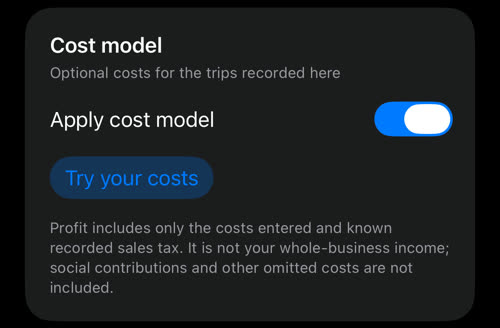
My cost model groups the costs on four pages. Amounts are in your currency (USD here), distances in the unit the meter uses.
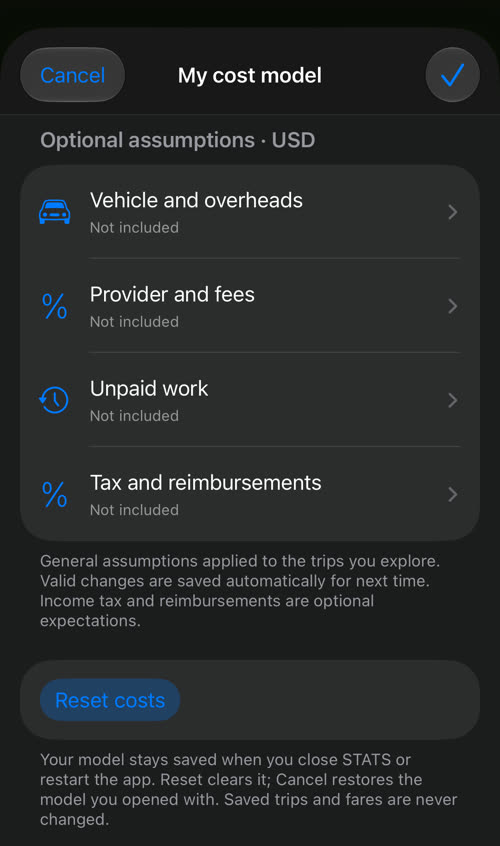
Each field says under it what to enter and when to skip it. Numbers are typed on the app’s own keypad. Valid changes are saved as you go; ✓ closes the screen, and Cancel puts back the model you opened it with.
Vehicle and overheads
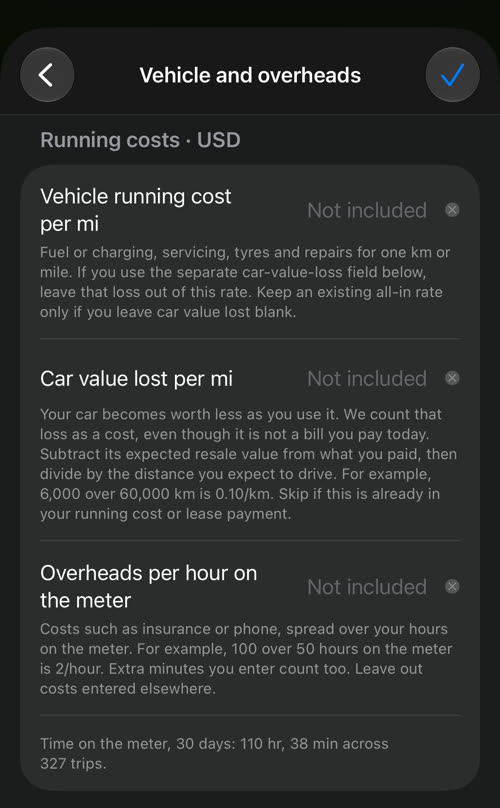
- Vehicle running cost per mi (or per km) — fuel or charging, servicing, tyres and repairs for one mile or kilometre. If you also fill in car value lost, leave that loss out of this rate. An all-in rate you already know works too, as long as you leave car value lost empty.
- Car value lost per mi — the car becomes worth less as you use it. That is a real cost even though no bill arrives today. Take what you paid, subtract the expected resale value and divide by the distance you expect to drive: 6000 over 60000 km is 0.10 per km. Skip it if it is already in your running cost or lease payment.
- Overheads per hour on the meter — insurance, the phone and similar costs spread over your hours on the meter: 100 over 50 hours is 2 per hour. Extra minutes you enter under Unpaid work count as hours too. To help, the page shows how much time the meter ran in the selected period.
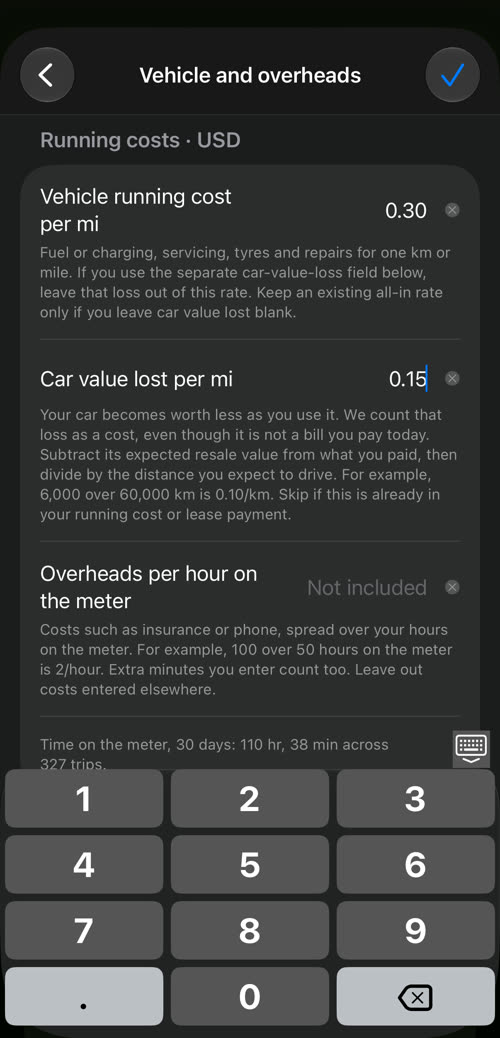
In the example, running costs are 0.30 a mile and the car loses 0.15 a mile:
Provider and fees
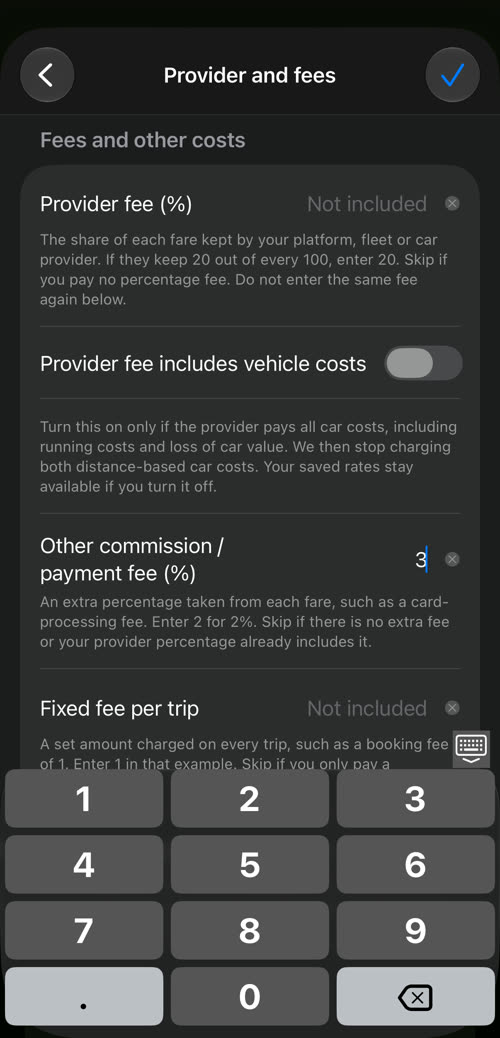
- Provider fee (%) — the share of each fare your platform, fleet or car provider keeps. If they keep 20 of every 100, enter 20.
- Provider fee includes vehicle costs — turn this on only if the provider pays all car costs, running costs and loss of value alike. The distance-based car costs then stop being charged; your saved rates stay, and come back if you turn it off.
- Other commission / payment fee (%) — an extra percentage taken from each fare, such as a card-processing fee. Enter 2 for 2%. Skip it if your provider percentage already includes it. The example enters 3.
- Fixed fee per trip — a set amount charged on every trip, such as a booking fee.
- Other costs per trip — an average of anything else you pay per trip and have not entered elsewhere: 20 of extra costs over 10 trips is 2 per trip.
Do not enter the same fee twice. A percentage fee is taken from the fare; together the percentages cannot exceed 100%.
Unpaid work
The meter only sees the trip. Driving to a pickup, coming back empty and waiting for the next job cost you fuel and time too.
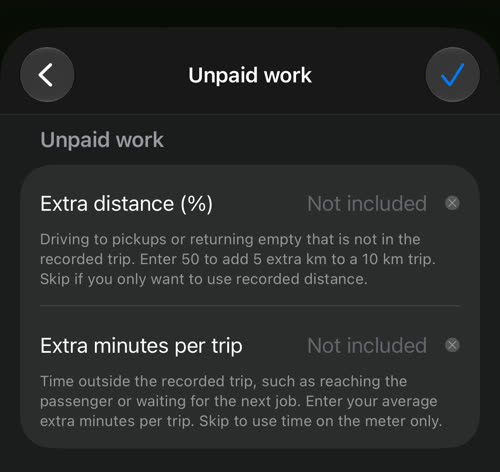
- Extra distance (%) — driving outside the recorded trip. 50 adds 5 extra km to a 10 km trip. Running costs and car value lost are charged on that distance as well.
- Extra minutes per trip — your average time outside the recorded trip. It is added to the hours used for the hourly rates and the overheads.
When either is set, the labels say so — Estimated profit per hour on the meter incl. extra minutes — so a rate with your waiting in it is never mistaken for one without.
Tax and reimbursements
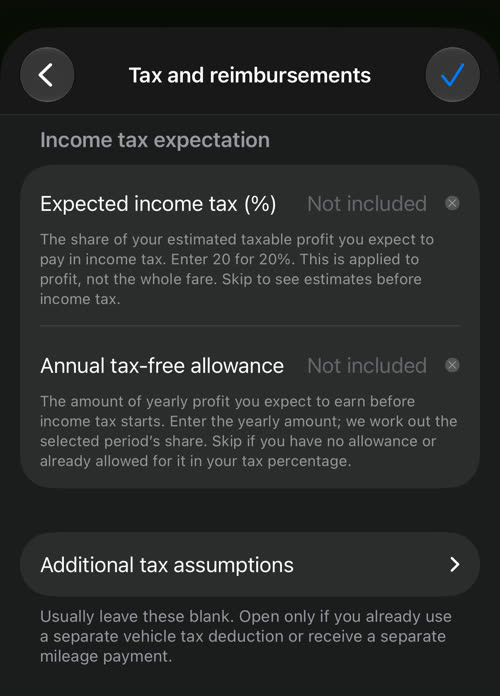
- Expected income tax (%) — the share of your estimated taxable profit you expect to pay. Enter 20 for 20%. It is applied to profit, not to the whole fare. The Overview then shows an Estimated income tax row, and the profit becomes Estimated profit on recorded trips.
- Annual tax-free allowance — the yearly profit you expect to earn before income tax starts. Enter the yearly amount; the app works out the selected period’s share.
Additional tax assumptions — usually leave these empty. Open them only if you already use a separate vehicle tax deduction or receive a separate mileage payment:
- All-in vehicle tax deduction per mi — for a single tax deduction per mile or kilometre instead of separate vehicle expenses and depreciation. It lowers taxable profit, not money spent.
- Tax depreciation per mi — the car-value amount you deduct for tax, when it differs from the car value you actually lose: 3000 a year over 30000 work km is 0.10 per km. Left empty, car value lost is used; 0 means no depreciation deduction.
- Cash reimbursement per mi — money an employer or another company pays you on top of the fare for using your car. Enter what you keep after any tax; it is added to estimated profit.
What you see after ✓
The four pages now summarise what they hold:
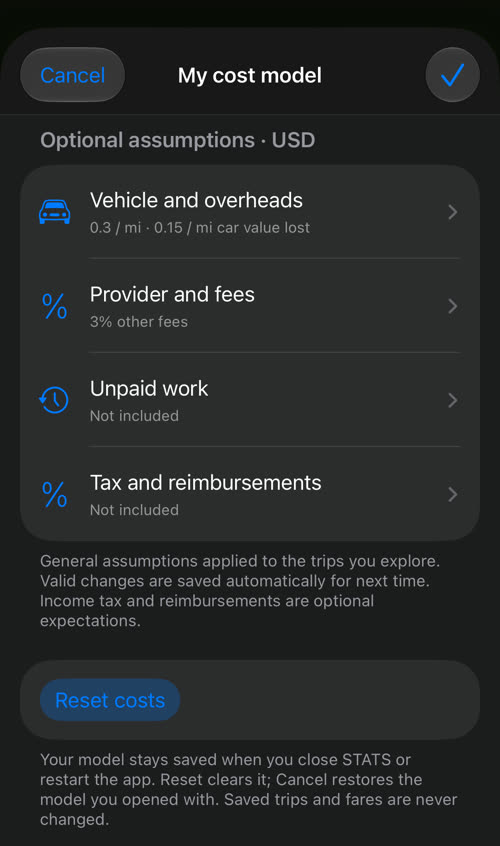
And the card on the Overview shows your saved assumptions, Edit costs, Reset costs and the Apply cost model switch:
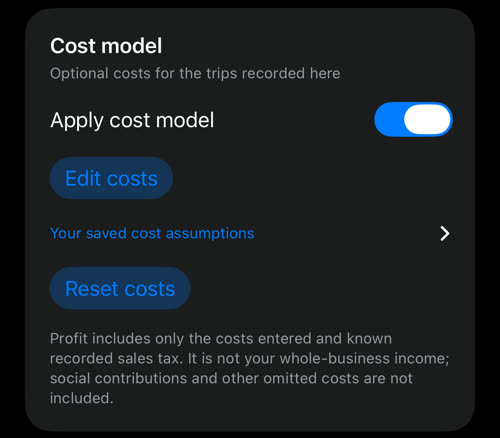
- Apply cost model off shows gross only. Your costs stay saved for when you turn it on again.
- Reset costs clears every assumption. Your trips and fares are never changed.
What the numbers look like with costs applied — the headline, the split daily chart, profit per hour on the meter, the fares ranked by profit — is on the Advanced stats page.
What the estimate is — and is not
- It counts only the costs you entered and the sales tax recorded on the trips. Social contributions and anything else you left out are not in it.
- It is not your whole-business income — just the recorded trips of the selected period.
- A trip is left out of the estimate if it lacks something a cost needs (a fare, its saved sales tax, a distance or a time). The card tells you how many trips the amounts cover.
- The assumptions stay saved when you close the screen or restart the app. On iPhone they travel with a settings backup ; on Android they are part of the phone’s own backup.
On Android
The same four pages with the same fields, help texts and rules.
Advanced stats ▪︎ Classic stats ▪︎ Sales tax ▪︎ Settings backup and restore