Route map and the map gauge
The Rally computer can show the event on a map — the whole course for planning, and a small live map on the driving screen for context.
The map gauge
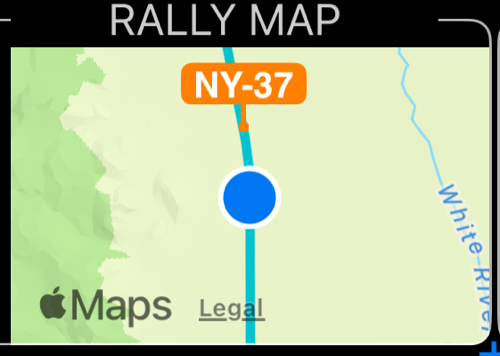
Add Route map as one of the rally gauges (tap the ⋮ button in any gauge and pick it). It is small on purpose: it gives the navigator context without taking the numbers away.
- It follows your position and turns the map so what is ahead is on top — the same course-up behaviour as the main map, and it respects your North-up / Track-up choice in the map settings.
- The route is drawn when the rally book carries one.
- Course notes appear as chips: the tulip diagram or road-book symbol on the left, a short code on the right — the marker, or the turn as R15 / L40. The next five notes ahead are full chips, the very next on top; notes further ahead and notes already passed are small dots on the route, still there but out of the way.
- Checkpoints and start/finish appear as the app’s usual paddle markers, in the paddle style and size you chose in the map settings.
- In Track-up, your position sits near the bottom of the gauge so the road ahead fills the rest.
- Your position uses the cursor style you picked in the map settings — dot, car, triangle, boat, plane or helicopter.
Everything is data-driven: no route in the book means no line, no located notes means no note markers.
Options
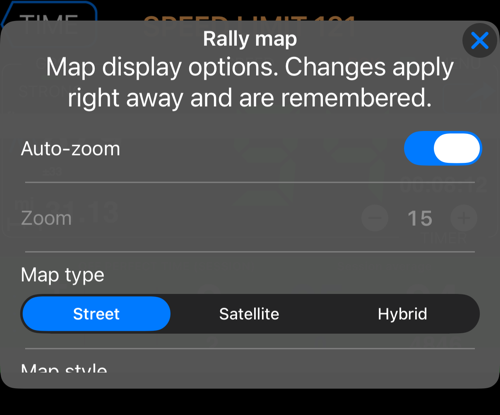
Tap the gauge to open its options. Changes apply right away and are remembered:
- Auto-zoom — the view opens out as you speed up and tightens when you slow down. Turn it off to keep one zoom.
- Zoom — the fixed zoom level, used when auto-zoom is off.
- Map type — Street, Satellite or Hybrid.
- Map style — System, Day or Night.
The whole course
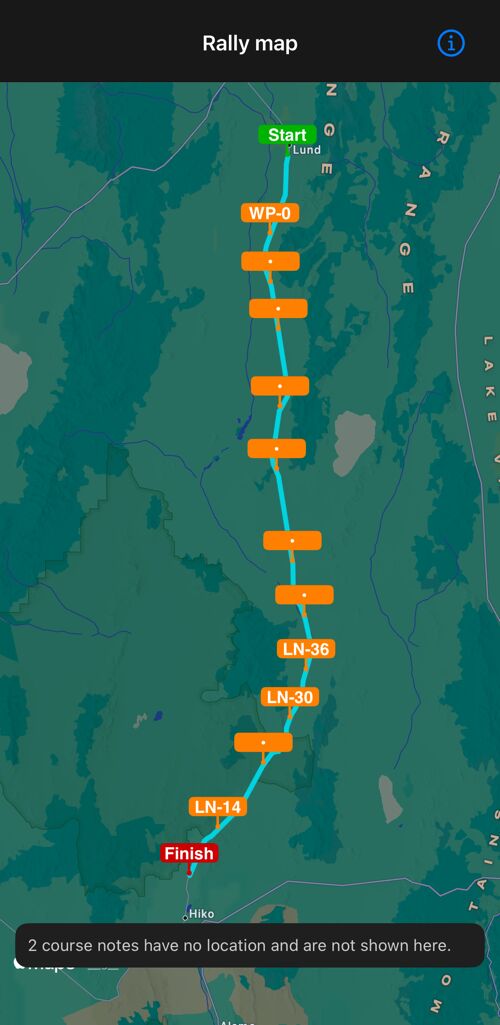
Open Rally settings > Route map for the planning view: the route, the located course notes, the segment checkpoints
as S1…SN, and start and finish. Tap a marker to read its note — instruction, remark and the distance where it applies.
The footer tells you what the rally actually contains, for example Route 90.1 mi · 85 course notes · 3 segment checkpoints, and notes without a location are counted there rather than being dropped silently.
Putting the course on the main map
A rally route can also live outside the Rally computer. In Rally settings > Route and notes in the app, save the route as one of your tracks and pin it, and the course line stays on the main map. See Rally book .
Related:
Rally computer ▪︎ Rally book ▪︎ Course notes ▪︎ Session options