Rally settings
Rally settings is where the book lives and where you decide what to do with it. The screen has two parts. On top, headed Road book, is everything that belongs to the book itself: its identity and language, the route, the course notes, the route map and the precision of its distances. Below that, Use this book for asks what the session does with the book — Navigation, or A regularity rally with segments and a target average speed — and only the settings that use needs appear under it.
Open it from the rally control panel MENU > Open rally settings, or with the settings button in the panel:

Or via the main MENU button here:

And then Settings > Advanced settings > Rally settings.
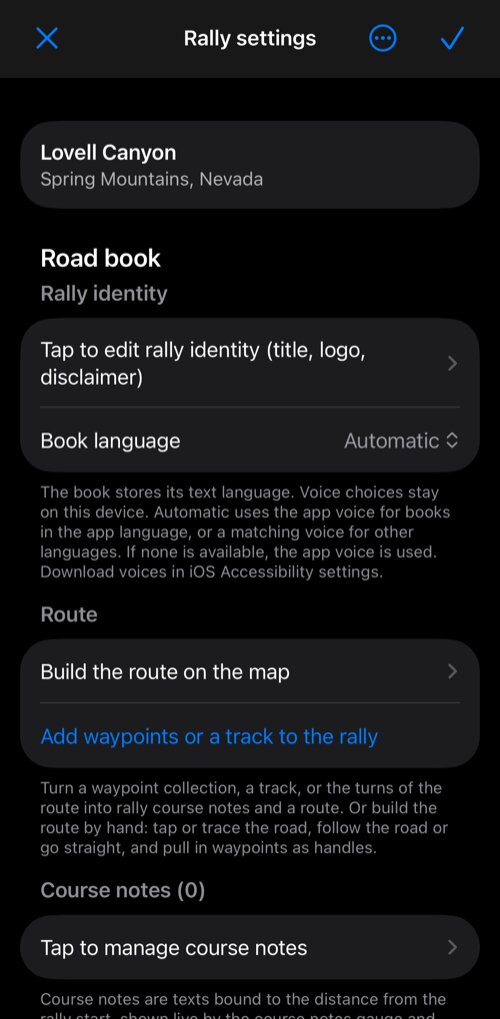
What is on the screen
When a book is loaded, its title, subtitle and logo head the screen. Then, in the order you meet them:
Road book
- Rally identity — the event title, subtitle, description, logo, organizer credit, website and disclaimer. Loaded books fill this in; you can also add a logo from Files.
- Book language and Voice — the language the book is written in, and the voice that reads its notes aloud. See Book language and voice below.
- Route — Build the route on the map opens the route editor , where you draw the route for a road you have not driven yet. Add waypoints or a track to the rally builds the book from data already in the app. Both are hidden while a rally session is running.
- Course notes — the notes that follow your distance, with their count.
- Route map — the route, checkpoints and notes on a map. Shown when the book has a route or located notes.
- Route and notes in the app — save the route as a track, pin it to the main map, or save the notes as waypoints. See Rally book .
- Distances in this book — 2 or 3 decimal places. See below.
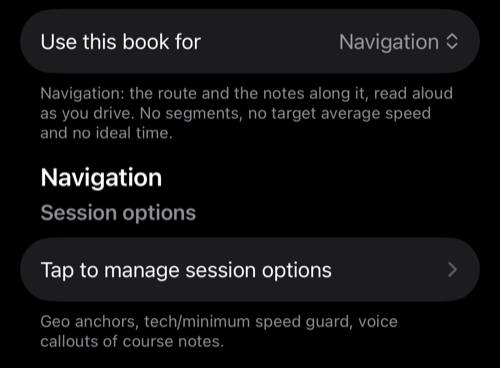
Use this book for — Navigation or A regularity rally.
- Navigation — the route and the notes along it, read aloud as you drive. No segments, no target average speed and no ideal time. Below the picker you find Session options alone.
- A regularity rally — the rules of a timed event on top of the road book. Below the picker: Segments usage, Segments, Session options, and the number of decimal places for the target TSD/average speed.
Switching deletes nothing. A book that came with segments keeps them while you use it for navigation, and choosing A regularity rally again brings them back as they were. The picker cannot be changed while a rally session is running.
The ⋯ button holds Set up a new rally…, Load rally (rally library, My rallies, import from Files), Share or backup (the rally file as JSON, and the printable road book as PDF or HTML) and Help. See Rally book .
Book language and voice
Book language declares the language the book’s notes are written in. Automatic uses the app voice for books in the app’s language, or a matching voice for another language. When you pick a language, Voice lets you choose one of the installed voices for it, and Voice used shows which voice will actually speak. Languages with no voice installed are listed separately; download voices in the iOS Accessibility settings.
The language is stored in the book and travels with it. The voice choice stays on this device.
Distances in this book
The book’s own precision: 2 or 3 decimal places (2.33 miles or 2.333 miles). It is stored in the book next to its unit, because the organizer measured the course to that precision, and the odometer, the course notes and the printed road book all read distances to it. A change applies at once.
It also sets the distance adjustment steps you can use during the rally. Use the “±” button to show adjustment controls:

With 3 decimal places, extra adjustment controls for +.001 and -.001 are available:

With 2 decimal places, only +.01 and -.01 adjustments are present.
Session options
Both uses have Session options: geo anchors, the tech/minimum speed guard and the voice callouts of course notes serve a navigator as much as a competitor. For a regularity rally the screen also carries the whole-session target average speed and off perfect time, odometer snap on split, automatic segment advance and splitting at segment end anchors. For navigation those rows are hidden; their values are kept for when the book is used for a regularity rally again. See Session options .
Segments
Segments appear when Use this book for is set to A regularity rally.
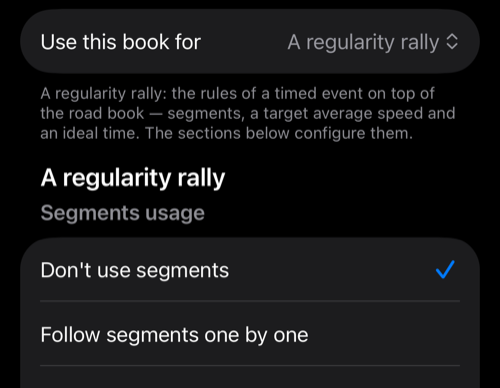
Segments serve for organizing the rally, if needed.
You can run your rally without any segment entered and use the SPLIT button in the rally control panel at any moment to split to the next segment/stage.
Segments, when entered, can be helpful in many ways:
- When you enter distance, the “Rally distance” gauge shows the remaining distance to the end of the segment, in addition to the current distance.
- When you have both distance and target average speed entered for a segment, the “Rally timer” gauge in the tripmaster shows the ideal time for that segment.
Depending on the Segments usage you pick:
1. Don’t use segments
Segments are not used, even if you provided them. Only the “split” button is shown, to split at any moment you need.
2. Follow segments one by one
When you start a rally session, the app starts with the first segment and gives you a button to split to the next segment. When you split to the next average speed segment, the app applies that target average speed to the off perfect time monitor as well.
3. Only give hints for average/TSD segments
Also starts with the first segment, but always provides an option to split to a segment with no average speed, plus a split option to the next rally segment in the list you provided.
Segments usage can only be changed while no rally session is running.
Depending on the information you entered for each segment, the segments list shows the start, end, total distance and ideal time for each segment:

When a rally session is not running, you can add, delete and re-order segments. You can also delete all of them by tapping the “…” button and picking “Remove all segments”.
Target average speed - number of decimal places
Shown for a regularity rally. Mostly for the convenience of seeing the target average speed as 50, 60, etc. when you don’t need decimal precision for the target average speed.
The current average speed in the rally’s tripmaster and off perfect time monitor is always shown with 4 decimal digits, regardless of this setting.

Backup and restore, or share the whole rally
Use the ⋯ button in Rally settings and pick Share or backup > Rally file (JSON). That single file carries the whole rally: identity, segments, course notes, route — including the handles of a route drawn in the route editor — and session settings. Save it to iCloud Files or send it by e-mail; to bring it back, tap the file and open it in Speedometer 55.
The same menu exports a printable road book (PDF or HTML), and Load rally brings a rally in from the rally library , from My rallies on this device, or from Files.
The rally file is a simple text/JSON file. If you need, you can use a text editor to add/update/delete entries.
Full details: Rally book .
Save the gauge layout with a rally
Arrange the Rally computer gauges, then save to My rallies or share a Rally file (JSON) from the ⋯ menu. Leave Include current gauges and colors on to store their positions and background colors in the book. It is also available when saving before Set up a new rally. Loading a book lets you use its gauges and colors or keep your own. See Rally book for details.
Related:
Rally computer + ▪︎ Rally book ▪︎ Route editor ▪︎ Course notes ▪︎ Route map ▪︎ Session options
Off perfect time (TSD) monitor
Old rally computer - Might still be useful if you can’t upgrade to iOS 15 or higher. Newer, Rally computer (+) is only available from version 4.7 and iOS 15 and higher.
❤️ Have a moment to support the app with your reviews? Please tap here to give a review or rating: