Rally computer +
Rally computer + is the Rally Computer mode in Speedometer 55: a configurable tripmaster, precise control over rally distance and time, a session manager, and — from version 6.4 — a complete rally book for the event you are driving.
The same mode runs a book two ways. Used for navigation, it follows the route and reads the course notes aloud, with no segments and no target average speed. Used for a regularity rally, it adds segments, a target average speed, ideal time and off perfect time on top. You choose with Use this book for in Rally settings .
From the main screen, open MENU > MODES > Rally computer.
New in version 6.4
The event itself now lives in the app, not on a clipboard:
- Rally book — one file with the event identity, segments, course notes and route. Load it from the rally library or from Files, keep every rally in My rallies on the device, share the whole rally as one file, and export a printable road book (PDF/HTML).
- Route editor — draw the route on the map for a road you have not driven yet: tap or trace the road, follow the road or go straight, add waypoints and notes on the way, and get the terrain for the printed elevation profile.
- Course notes — mile markers, instructions and remarks that appear by themselves at the right distance, on the panel and read aloud.
- Route map — the course, checkpoints and notes on a map, plus a live map gauge that follows you course-up.
- Session options — whole-session off perfect time, a start at an assigned time of day, odometer snap on split, geo anchors that re-sync the distance at checkpoints, and tech/minimum speed guards.
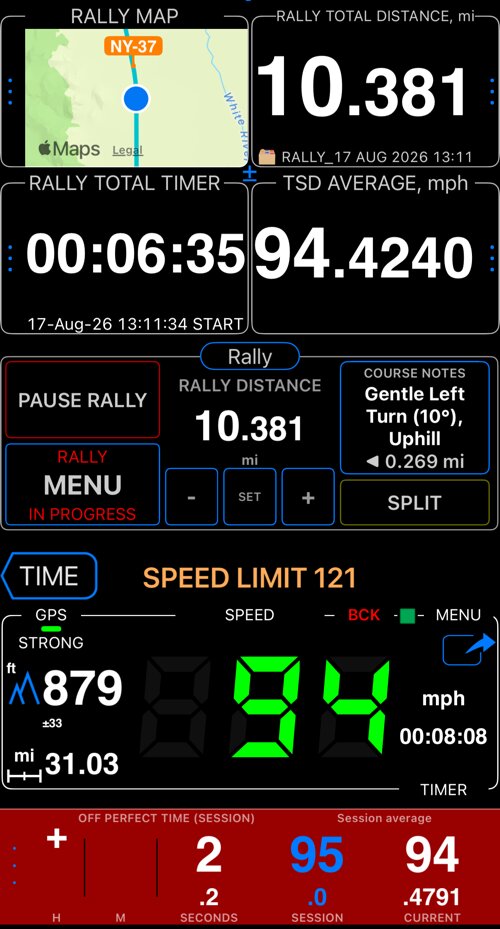
The driving screen
Main improvements:
1. Tripmaster provides 4 configurable fields.
Tap on the ⋮ button in any of the tripmaster fields to change the field’s measurement type or background color:

Scroll down in the above menu to see a background color picker.
2. Incremental adjustment controls.
When a rally session is active, you can use the “±” button to show adjustment controls:

When using 3 decimal places for distance, extra adjustment buttons, for +.001 and -.001 increments, will be available:

Use the “Link” buttons in the top corners of distance and timer gauges to control whether incremental adjustments to “current” counters are also applied to total distance or total timer.
3. Rally session.
From the main screen, open MENU > MODES > Rally computer.
The MENU button in the rally control panel provides options to start, pause, or finish the rally session. Use the large MENU button at the lower left of the panel, shown below.
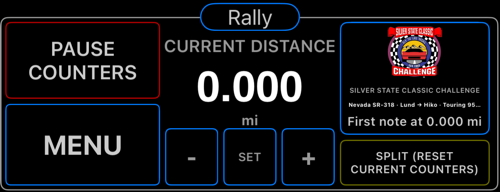
Rally session:
- Provides separate counters for rally distance and time. Current and total. This enables free adjustment of these counters, independent of actual distance and timer values.
- Records GPS tracks for each split/segment. This keeps the app running in the background and ensures your rally is fully recorded, until you finish the rally session.
To start a new rally session, choose MENU > Start new rally session in this panel.
When the session is active, you can pause or finish it (via the MENU button in the rally controls panel):

You can also pause or finish the rally session via the main MENU button > PAUSE RALLY or FINISH RALLY.
4. Segments.
A segment might represent a certain distance to drive through at a certain average speed. Neither distance nor average speed is a mandatory parameter.
Segments, when provided, can be helpful in many ways:
- When a segment has a distance/length, the “Rally distance” gauge will show you the remaining distance to the end of the current segment, in addition to the current distance.
- When a segment has a distance and target average speed, the “Rally timer” gauge in the tripmaster will show you the ideal time for that segment.
You can use segments in 3 ways:
1. None
Segments are not used, even if you provided them. Only the “split” button is shown to split at any moment you need.
2. Follow segments one by one.
When you start a rally session, the app starts with the first segment and gives you a button to split to the next segment. When you split to the next average speed segment, the app will apply this target average speed value to the off perfect speed monitor as well.
3. Only give hints on average speed segments.
Starts with the first segment, but always provides an option to split with no average speed applied, plus provides a split option to the next rally segment in the list you provided.
If segments are something that can be helpful for your rally, configure them in Rally settings (rally control panel MENU > “Open rally settings”, the settings button in the panel, or Settings > Advanced settings > Rally settings). Set Use this book for to A regularity rally first: Segments usage and Segments appear below it. A book used for navigation keeps any segments it has, but does not show or apply them.

Switch to any segment time.
Tap on the current segment button to show a menu that allows you to split to any segment:

5. Speed-dials for a target average speed in the off perfect time monitor.
Target average (TSD) speed is set either by splitting to a segment with a target average speed or by tapping on a target average speed field in the off perfect time monitor:

Version 4.7 adds speed-dials for applying the speed value with one tap.
Speed-dials show buttons for speeds between None and 100:

Or if you have provided segments with target average speed, then you have easy access to these values in the “Segments” section:

6. Share or back up the whole rally.
Don’t want to lose the 30 segments and 80 course notes you entered for a specific event? Or need to send them to friends so nobody re-types the same information?
Use the ⋯ button in Rally settings and pick Share or backup > Rally file (JSON). That one file is the whole rally — identity, segments, course notes, route and session settings. Save it to iCloud Files or send it by e-mail; to bring it back, tap the file and open it in Speedometer 55.
The same menu exports a printable road book as PDF or HTML, and Load rally finds rallies from the rally library , from My rallies on the device, or from Files. See Rally book for the whole flow.
The rally file is a simple text/JSON file. If needed, you can use a text editor to add/update/delete entries.
Need more features, have comments? Please write to support@blocoware.com.
Related:
Rally book ▪︎ Route editor ▪︎ Course notes ▪︎ Route map ▪︎ Session options
Rally library — rally books ready to load.
Off perfect time (TSD) monitor
Old rally computer - Might still be useful if you can’t upgrade to iOS 15 or higher. The newer Rally Computer (+) is only available from version 4.7 and iOS 15 and higher.
❤️ Have a moment to support the app with your review or rating? Please tap here to give a review or rating: