Managing offline maps
Available in the full version.
New from version 1.8 is the ability to import existing mbtiles, Rmaps, sqlitedb maps
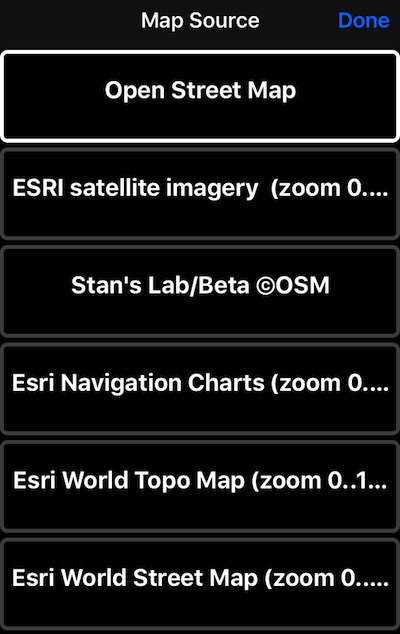
Offline maps are based on map raster tiles provided by a map server. The app comes with several pre-installed map tile sources:
- Blocoware Open Street Map (Zoom 0..17) — our own OpenStreetMap map, made for offline downloads. More.
- ESRI Satellite imagery (Zoom 0..17)
- Esri Navigation charts (Zoom 0..10)
- Esri World topo map (Zoom 0..18)
- Esri World street map (Zoom 0..18)
You can also add your own map source/server to download maps from. Some servers, like Mapbox, may require a key to access them. You can put such a key into the map source URL.
To create an offline map, tap on a “+” sign in “Map Settings”:

In the offline map detail window, set a map name (by tapping on a row with a map name):

Pick a source to download the map from (by tapping on a Source row):
Tap on a “Region” row to pick a region to download:

Tap on a “Zoom levels” row to pick the zoom levels you need to download:

And now all that’s left is to tap on the “Start download” button. Before doing so, please review the expected download size and space available on your device:

During the download, you can use the resume or cancel buttons to stop or clear the download data. If you stopped the download or it was stopped because of map server errors or a timeout, you can resume it with the Resume button:

After completing the download and returning to the map settings screen, just select that downloaded map from the maps list. If the area shown on the map is not covered by the offline map you selected, you’ll see “No Data” tiles telling you the zoom level currently used by the map:

Try zooming the map in or out so its zoom level is within the range you downloaded. We recommend always downloading lower zoom levels, as it makes it easier to find your downloaded region on the map. So it is better to select zoom levels 5 through 16 for download than selecting 14 to 16. Lower zoom levels only need a small number of tiles to download.
This feature is available only in the full version. You can upgrade by tapping here.
More on offline maps: