Speedometer 55. Lenses and zoom: the zoom chip, the lens strip, AUTO or one lens.
An iPhone with several cameras normally hides them behind one zoom: you slide from 0.5x to 5x and iOS decides which lens does the work. That is right for snapshots and wrong for a survey, where two photos of the same wall should be taken through the same glass at the same framing. The camera screen gives you both — the automatic camera when you want it, and one named lens when you need the shot to repeat.
The zoom chip
The zoom chip is the small readout at the bottom of the left edge of the viewfinder, just above the AF button. It always shows two things: the zoom on top, and underneath the focal length of the lens that is actually taking the picture — 13, 24, 48 or 120 MM on an iPhone 15 Pro Max.
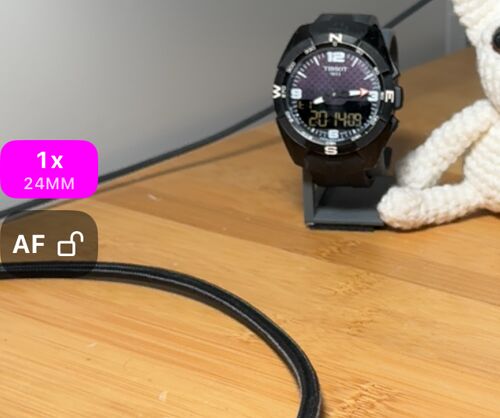
- Tap the chip to open the lens strip.
- Press and drag the chip up or down to zoom straight away — the quick way in, described under The lens strip below.
- A pinch on the picture zooms exactly the same way.
The chip uses yellow for two different things, and they are worth telling apart. The whole chip turns yellow when the zoom is between the lens stops — you are on a digital crop rather than on a lens' own framing. Only the focal length line turns yellow when iOS is serving the zoom from a lens other than the one that stop belongs to: close up it often uses the ultra-wide, the only lens that focuses that near, so 1x can quietly arrive from the 13 MM lens instead of the 24 MM one.
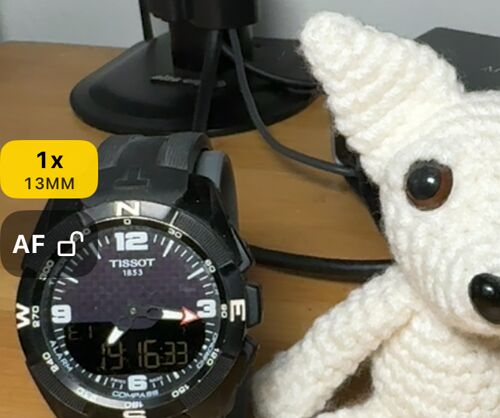
If that matters for the shot — and for a measurement or a repeat it usually does — pick the focal length you want on the strip.
The lens strip
Tap the chip, or tap the camera button at the top of the screen and choose Lenses and zoom, and the strip opens along the left edge.
There is a faster way than tapping, and it is worth the habit: put a finger on the chip and slide it up or down. The strip opens under your finger and the zoom starts following immediately, so you never tap, wait for the strip to appear, and then go looking for the dial — one movement does all three. The phone taps once as you cross each lens stop, so you can feel 1x, 2x and 5x go by without reading the numbers, which is what you want one-handed or with the phone in a mount. Lift your finger and the strip hides itself a few seconds later, leaving the zoom where you put it.
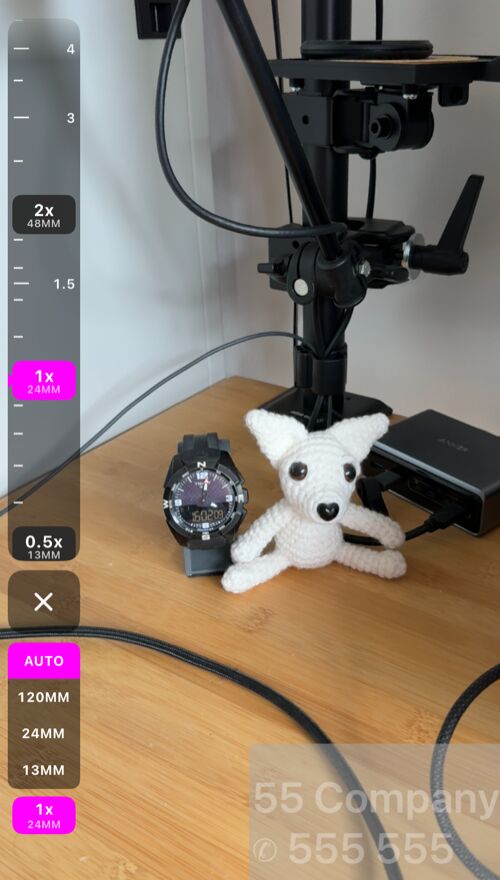
The dial is a vertical ruler with your iPhone’s lens stops on it as pills — 0.5x · 13MM, 1x · 24MM, 2x · 48MM and 5x · 120MM on an iPhone 15 Pro Max, where 2x is the main sensor’s own crop rather than a separate lens. Drag the dial for fine zoom; tap a pill to jump to that stop, and the picture ramps to it. The scale scrolls under the current zoom, so a stop can be just off the visible end — drag towards it and it comes into view.
Under the ✕ is the lens selector: AUTO and then one focal length per lens. The strip hides itself after a few seconds without a touch, and while it is open it takes the AF button’s place on the edge; close it, or wait, and the button comes back.
AUTO, or one lens
- AUTO is the automatic camera. The whole zoom range is one continuous slide and iOS picks the lens for the scene — what the built-in Camera app does.
- A focal length is that single lens and nothing else. The dial zooms digitally within it, the picture never changes lens on its own, and a stop always means the same optics and the same framing. This is the choice for measurements, inspections and any pair of photos that has to be comparable.
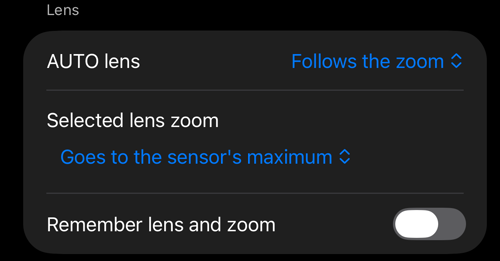
AUTO lens, under Viewfinder controls , decides how much freedom the automatic camera has. Follows the zoom (the default) lets iOS change lens when you zoom across a stop, and keeps it while you hold still. Switches by itself is the Camera app’s behaviour — iOS may change lens while you hold still too, close up or in low light; at 1x that can flip between the wide and the ultra-wide.
How far the zoom goes
iOS publishes two ceilings for every camera: the zoom it recommends, and the raw maximum the sensor can crop to. On AUTO the dial stops at the recommended one — 25x for photos and 15x for video on a 5x-telephoto iPhone — exactly like the built-in Camera.
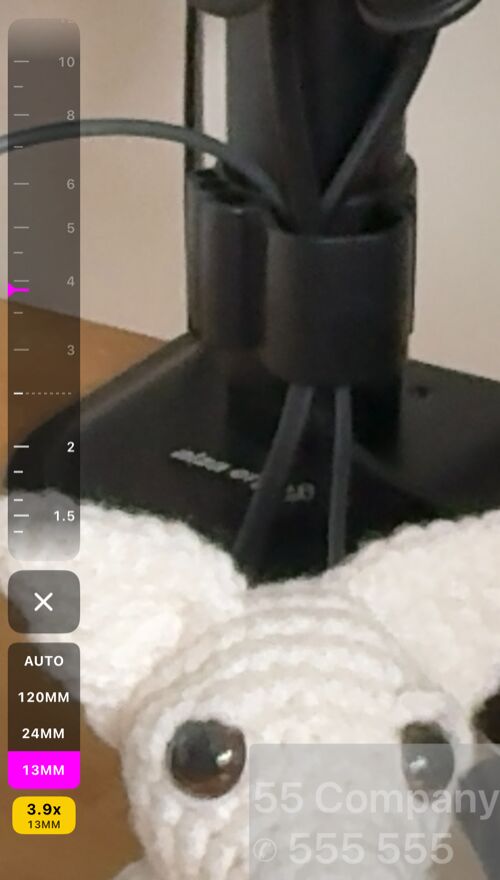
A single selected lens goes further, because there its recommended ceiling is only the point where iOS would have handed over to the next lens, not a quality limit. Past it the dial’s marks are dimmed, a dashed line marks the boundary and the phone taps once as you cross, so you always know where the sharp range ended. Selected lens zoom, under Viewfinder controls , chooses between Goes to the sensor’s maximum (the default) and Stops at the recommended zoom.
The front camera
The front camera has one lens, so there is no strip and no selector — the pinch and the chip still zoom within it. Switch cameras from the camera button at the top of the screen: a long press flips at once, and a tap opens the camera sheet with Back camera and Front camera on it.
Remember lens and zoom
Remember lens and zoom reopens the camera with the lens and the zoom you used last — AUTO or one of the focal lengths. Without it the camera always opens on AUTO at 1x. This one row needs the paid version; every lens, the whole zoom range, the dial, the chip, the pinch and the flip are free for everyone.
Related
- Focus — the AF button, locking focus, and why a lens change releases a lock
- Shutter timer — the camera sheet and the countdown before a shot
- Camera lenses — where the camera screen’s lens controls live
- Viewfinder controls — the settings behind the rows on this page
- Camera settings — the rest of the camera screen’s settings
- What’s new in version 6.4