Planimeter 55
Measure areas and distances on a map, add standalone waypoints, and export or import all objects via KML or KMZ (Google Earth format).
Soon:
Version 4.4 (August 2026)
Video recording, with location data built in. Video recording arrives: document sites, measurements, and field observations with video that keeps its location data attached — with data overlays you choose. Plus point map snapshots, terrain elevation on the map, and smarter point altitudes. Everything in 4.4 →
Expected: Public beta, August 2026.
SHORT USER MANUAL
Buttons
Search.

Search by place or address, jump to an existing point, or enter coordinates by hand.
Add measurement.

Use this button to start a new measurement — an area or a route/distance.
Add point.

Once a measurement is started, this button adds a new point at the map center (where the red arrow points). Points are named automatically, and you can rename them later — unless the point belongs to an area.
Red arrow.

The red arrow button lets you add a point at the map center, offset a point from the center by a given distance and bearing, or jump to your current location.
Map settings and layers.

Opens the map settings screen, where you can pick a map provider (Apple or Google) or add custom URL and offline maps. Imported maps also appear here.
Shape/Collection selector.

Opens a list of all shapes and collections in the app so you can pick which one is currently being edited on the map. The button shows the active shape/collection name and its type on the left. The example above shows a simple points collection (folder) that holds disconnected points.
Focusing button.

Centers the map on the active shape/collection, or on its start or end point.
Zoom.

Will zoom in and out.
Menu.

Opens the menu. Options include: take a map snapshot, show the list of points, show collections/shapes, open settings, open this documentation site, and contact the app developer (feedback & support).
Indicators
Top tool bar.

Shows the active shape’s type, name, perimeter, and area (when applicable).
Map center red arrow hints panel.
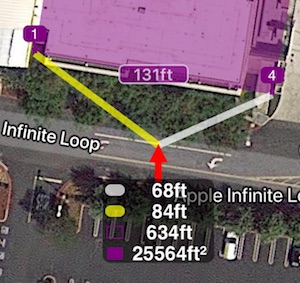
The red arrow marks the map center. The adjacent yellow and white hint lines connect the points between which a new point would be inserted.
The panel below the red arrow shows the length of those hint lines, plus the perimeter and area the shape would have if a new point were added at the red arrow.
Bottom tool bar.

Shows a small compass for the current map orientation, the map settings button, and a scale bar. Next to them: the red-arrow follow button, the current coordinates, the distance from your current location (when location access is enabled), and the current map orientation in degrees.
Points and annotations
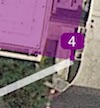
Tap any point on the map to open its options: open in the editor, move, share/export, navigate, or delete.
If the tapped point belongs to the shape/collection currently being edited, you’ll also get options to insert a new point before or after it.
FEATURES
Video.
Video recording, replay, and data overlays
Units.
Length and Area units of measurement
Switch between small and big units
Maps.
Map collections , allow you to build a custom map setup—from the base map to a configurable set of map and image overlays—tailored to your mission. Switch between map collections with a single tap when your task demands it. From version 4.0.
Import existing mbtiles, Rmaps, sqlitedb maps
Grid shows instead of an offline map, help!
Export and import.
Import of kml, kmz, gpx and csv files is supported.
SCREENS HELP
Measurement annotations setup.
VIDEOS
Overview on youtube: https://youtu.be/H2GmnjObG4U
PRO PACK UPGRADE INFORMATION
Get unlimited number of point collections/shapes, Google map with extra zoom capabilities, Offline maps, export/import and more with a pro pack upgrade:
Information on Pro Pack upgrade
TROUBLESHOOTING & CONTACT
We answer every support email! MENU > SUPPORT & FEEDBACK > “There is a problem” lets you send an email through your device’s built-in mail app. You can also reach the app developer (Stan Dvoychenko) directly at support@blocoware.com or on +420 724 730 447 (also iMessage). The SUPPORT & FEEDBACK path is preferred — it attaches the iOS version and device model automatically, which saves a round-trip.
Support email: support@blocoware.com
Support phone: +420 724 730 447 (Czech Republic, EU)
MORE APPS FROM US
GPS Camera 55. Capture photos stamped with location, direction and notes.
GPS Team 55 - Team tracking and collaboration.