Watermark on your videos
A watermark is your mark on footage you share. Your own name and photo, the name of an expedition or a trail, your vehicle or your club — Compass 55 draws it into video you record in the app, over the top of whatever else the overlay is showing.
Open the camera, then Video settings > Watermark.
This screen is scoped to video. Compass 55 marks video only — the photo watermark is a GPS Camera 55 feature — so everything here is about recordings.
Switching it on
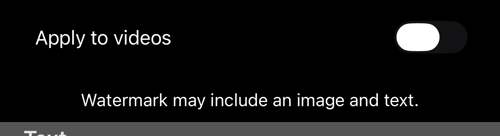
Apply to videos is the whole decision. With it off, recordings carry no watermark; with it on, every recording does.
On the free version the watermark is always applied and the switch will not release it. That is the app’s branding on free output, not a setting that has stopped working. The paid version is what makes the watermark yours to control — and to replace with your own.
The text
Up to three lines are drawn. Your name, an expedition and its leg, a trail, a date — whatever you want on the clip when it leaves your phone. Leave it empty and the watermark is the image alone.
The image
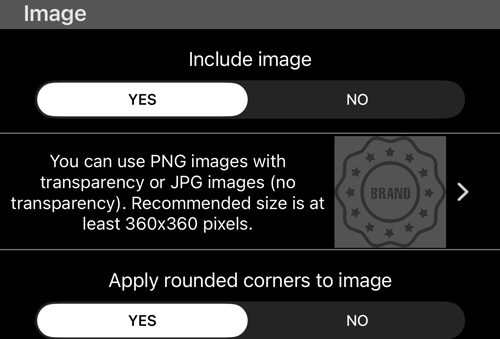
- Include image turns the picture part on and off independently of the text.
- PNG with transparency, or JPG without. At least 360×360 is recommended. A photo of yourself, a club badge or an expedition logo works well; a square or circular mark sits best in a corner.
- Apply rounded corners to image softens a square logo into a badge.
Add the image through Files, not the photo library. This is deliberate: the photo library re-encodes PNGs and flattens their transparency into an opaque JPEG, which turns a transparent logo into a white box. Tapping the image row opens the Files picker instead, so the file arrives exactly as you made it — from iCloud Drive, Dropbox, Box, a NAS, anywhere Files can reach.
Colours and transparency
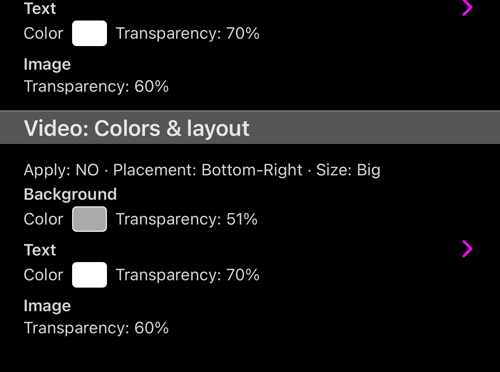
Three things carry their own colour and their own transparency: the background plate, the text, and the image. Transparency is what makes a watermark a watermark rather than a sticker — enough to read, not so much that it hides the footage underneath.
Because the background has transparency of its own, the colour you pick will always look paler on the video than it does in the picker. That is the transparency doing its job, not the colour being wrong.
Where it sits, and how big
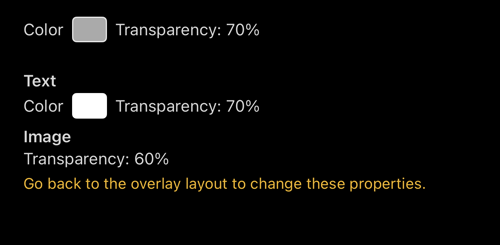
Placement is one of the four corners, bottom right by default, and Size is set here too — both stored for video separately from anything else.
Some of the appearance is not on this screen. A line says so plainly: “Go back to the overlay layout to change these properties." The overlay layout is where the gauges and the watermark are arranged together, and it has the final say on the parts it owns.
The overlay layout is where the watermark sits among the other overlays — the screen that shows you the frame rather than a list of rows, with its own Watermark switch, Placement and Size.
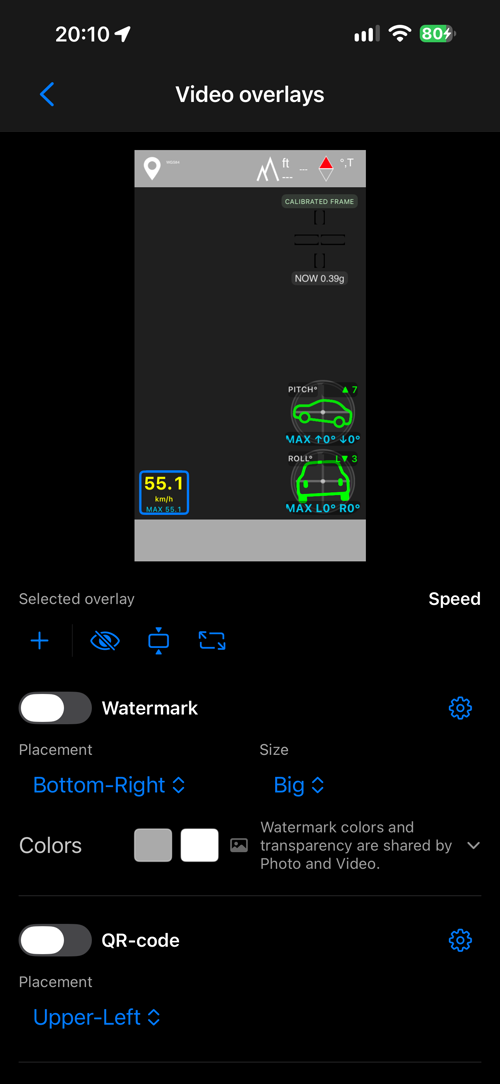
It also states the sharing rule in the app’s own words: “Watermark colors and transparency are shared by Photo and Video."
Related pages
- Video recording, replay, and data overlays — where the watermark is switched on
- Overlay videos from a track — the gauges exported without any video
- The GPS camera — everything the camera screen does, in one place
- Photo capture settings — Original versus Stamped, and which copies are saved
