Compass 55. Planimeter.
Planimeter allows you to create areas and routes on the map, measure and export/share them.
Enable planimeter mode
To start working with the planimeter, switch the map into search/editing mode by simply moving/dragging it, or by tapping on the “map centering” button (#1) and picking “Switch to map search/edit mode”:

You can also use button #2 (Layers) to pick the type of map that you need.
Now, when centering mode is off, you have the following tools that help you with building areas, routes and circles:
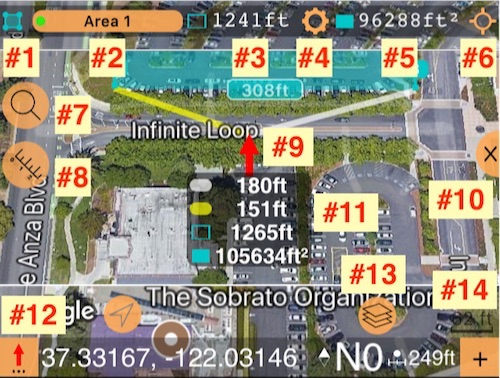
#1 - Symbol and color of an area, route or points folder, let me name it “map measurement” that is being edited.
#2 - Button with the name of a current map measurement. Tap on it to pick a different map measurement or waypoint collection to edit.
#3 - For areas and routes, shows the current perimeter or route length. Units can be set up via button #4.
#4 - Settings button to set units of length, area and their annotations. Its Annotations tab can also label every corner of an area with its inner angle: see
Inner angles of an area
.
#5 - Shows the current area value. Units can be set up via button #4.
#6 - “Focusing” button. Allows you to focus the map on the current measurement/collection, or measurement + your location, or start/end points of a measurement/collection.
#7 - Search button. Allows you to search by address/place, coordinates, or existing (way)points.
#8 - “Measurement” button. Offers options to create a new area or route or save/share/discard the one that is being edited.
#9 - Red arrow in the map center. This is the location where a new point will be created. You can also just hold your finger on any place on the map to open an option for creating a new point at that place.
#10 - “Minimize” map button. Will minimize the map size.
#11 - Measurement panel that shows what the size of the area/route will be if you were to add a new point here. Yellow and white “hint” lines go from this arrow to the points between which the new point would be inserted. Measurement panel shows the length of these hint lines as well. Values in the panel update as you move the map. This allows you to add as much to your area/route as you need - no need to try/guess.
#12 - Red arrow tool button. Allows you to move the red arrow to your current location, or in bearing/distance. Also gives more options for adding a point for a route.
#13 - “Layers” button. Allows you to pick a map provider (Apple, Google, Blank, custom url map provider or offline map) and map type for each provider - Street, Satellite and Hybrid, plus Terrain map for a Google map provider.
#14 - A map scale is under #14 plus a ‘+’ button that allows adding new points with just one tap at the place where the red arrow points.
How do you zoom in/out?
To show the zoom in and out buttons, just tap on the map. Zoom in/out controls will show up for a few seconds:
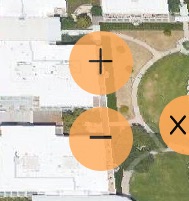
You can just pan in/out to zoom as well, of course.
Add new measurement
Add new measurement
One way to start with a new measurement is by tapping on #8 button:
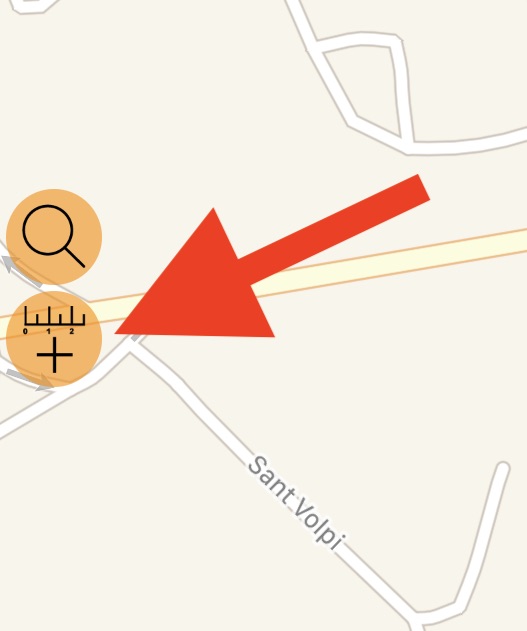
Options include adding new area or route (or circle from version 1.9.6):
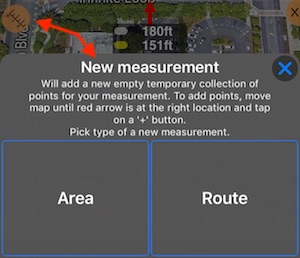
From version 1.9.6 you can also add circle areas.
Add points
Add points
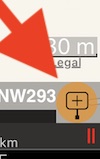
For either “Area” or “Route”, to add points to a measurement, move the map center to the desired location and tap on the ‘+’ button:
To move the map center, you can just swipe/pan on the map, or use the search button (#7), to open the search options:
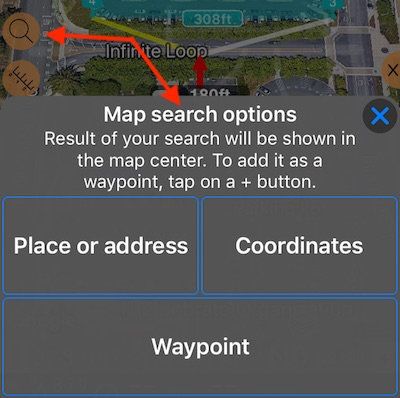
The result of a search will be shown at the map center, at the location of the red arrow, so you can drop a new point here easily with a ‘+’ button.
Save, discard, edit name/color, export
“New measurement” button (#8) will change a bit after you’ve created a measurement:
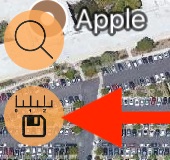
And will also offer options to Save the temporary measurement, discard it, rename, change its color or export:
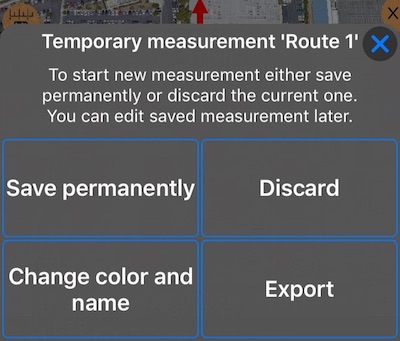
With the free version, the workflow would be: add new temporary measurement -> discard -> add new one. The number of points for temporary measurements is not limited in the free version.
With the full version, you can either keep your temporary measurement or discard it and start a new one. You can also export the measurement. A bit more detail on export:
Export of planimeter objects (Routes and Areas)
Moving points around and adding points in between existing ones
DELETE
To delete any point, tap on it on a map and choose “Delete”.
MOVE/EDIT + ADD PHOTO/AUDIO
To move a point, tap on it on a map and choose “Open”. In the editor that opens you can either move the point on a map (MAP section) or change its coordinates. You can also attach a photo or audio to a point here. (The only option that supports exporting photos and audio notes is Google KMZ, please be sure to use it if you want to export your images and audio files within the export file).
ADD POINT BETWEEN/BEFORE/AFTER EXISTING ONES
This also includes the ability to add a route point after an arbitrary point in a route. Tap on any existing point in your measurement to see options:
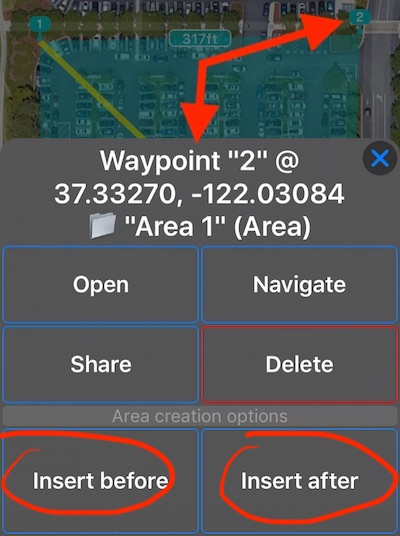
The image above shows that tapping on an area point shows options for “Insert before” and “Insert after”. Same options are provided for route points.

