Notes editor settings: what opens, how titles are built, and what history is kept
This screen is about the notes editor itself: whether it opens on its own after a capture, how the automatic title is built, and how much of what you typed before is remembered.
It does not decide what the notes say — that is the notes editor itself, which you reach from the capture screen — only what happens around it.
Open MENU > SETTINGS, then Notes editor. The row shows the current setup
without opening it: Open after capture, Photo: NO, Video: NO.
Photo and video are set up separately
A Photo / Video selector sits at the top, and the section titles follow it:
Photo · After capture, Photo · Title pattern, and so on. Switch to Video and
the same four sections apply to recordings instead.
Three of the four are per-medium — they are stored separately, not shown twice. Photo and video keep their own after-capture switch, their own title pattern (with their own timestamp format), and their own counter. Even the list of variables differs: the video pattern has no Collection field, which is why the Sample line reads differently on each side.
Only the last section is shared, and its heading says so:
Shared · History cleanup.
After capture
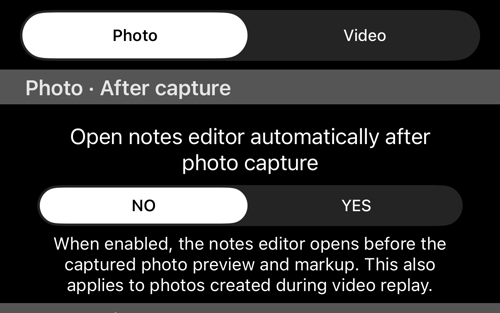
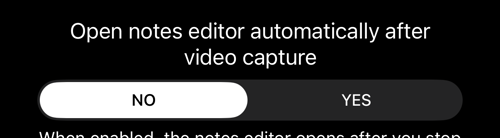
Open notes editor automatically after photo capture — NO by default. Set it to YES if you keep meaning to fill in the notes and keep forgetting.
For photos the editor opens before the preview and markup, and it also opens for photos taken during video replay. For video it opens after you stop recording, so you can review the title, note, tags and address while the recording is fresh.
One condition on the photo side: this only happens when photo capture settings are set to open a preview after the shot. With capture set to save straight away there is no preview to open the editor in front of.
Title pattern
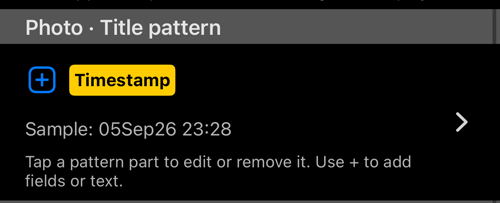
Every photo and video gets an automatic title, and this is where its shape is
decided. The pattern is a row of parts — Timestamp by default — and a live
Sample underneath shows what the next title will actually look like.
- Tap a part to edit it or remove it. Tapping
Timestamplets you change its date format, swap it for another field, or drop it. - Tap
+to add another field or a piece of your own text.
The photo pattern can include the collection name; the video pattern cannot.
Title auto increment sequence
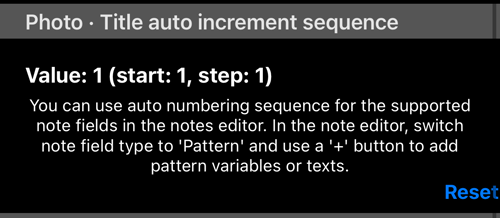
A counter you can put in a title so each capture is numbered. The row shows
where it stands — Value: 1 (start: 1, step: 1) — and Reset sets it back to
the start, which is what you want at the beginning of a new job.
Photo and video keep their own sequences. To use one, add it as a pattern field
in the notes editor: switch a note field to Pattern and use +.
This needs iOS 15 or newer. On older systems the row says so and stays greyed out.
History cleanup
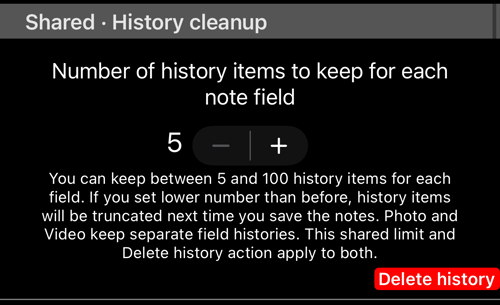
The notes editor remembers what you typed in each field before and offers it again — useful when the same site name or the same defect wording comes up all day.
- Number of history items to keep for each note field — between 5 and 100. Setting a lower number than before truncates the stored history the next time you save notes.
- Delete history clears it. This one is irreversible and asks before it runs.
Photo and video keep separate field histories, but this limit and the Delete
history button apply to both — which is why the section is headed Shared.
Keeping more than the minimum is part of the PRO upgrade ; the free version keeps five items per field.
