Channels
Channels let you share live location from the app by link or code. Use a group channel when several people want to see each other on the map. Use a personal channel when you want a one-way live location link. Both personal and group channels include a web page, so people can follow from a browser too.
The app sends your location only to channels you create or join. Adding a channel does not start live sharing by itself: Share location with channels must be on, and GPS tracking must be active. If tracking is stopped or paused, the app does not send your location to channels.
Best for
- activities where several people need to see each other on the same map
- offroad drives, hikes, rides, boating, or field work where the group may spread out
- temporary live location sharing by code or link
- letting someone follow from a browser without joining in the app
What you get
- a personal channel for one-way location sharing
- group channels where joined members can see each other
- web pages for both personal and group channels
- a selected group channel shown on the app map
- member labels with nick, color, emoji, speed, altitude, or last update
- map controls to find a group member or fit the group on the map
- an update interval setting for battery and data control
Channel web pages
Every saved channel can be shared as a web link. This is useful when someone needs to follow your live location or group activity but does not need to join the channel in the app.
Use Share to send a channel link. Use Open in browser to check the web page for that channel.
Personal channel web page
A personal channel web page shows your live location and recent updates to browser viewers. Viewers do not send their own location back to you.

Use a personal web page for progress sharing, pickup coordination, race support, or a safety check-in where only your location needs to be visible.
Group channel web page
A group channel web page shows the current group map and member status in a browser.

Browser viewers can see the group map. To send their own location into the group, they need to join the group channel in the app.
If a channel has a password, the browser page asks for the same channel password.
Channel settings
Open MENU, tap the small settings button inside the NEW TRACK menu item, then tap Sharing channels.

Turn on Share location with channels when you want the app to publish to your enabled channels during GPS tracking.
The Active channels section shows what is currently being shared:
Personalis your one-way personal channel, if enabled.Groupis the selected group channel shown on the map.
Personal channel
Create a personal channel when you want other people to follow only your location through a browser link. Viewers do not join the channel in the app and their locations are not sent back to you.

A personal channel is useful when you want to give someone a live progress link for an outing, pickup, race support, or safety check-in.
The personal channel row has Share and More actions. Use More to open the web page, copy the channel code, check channel status, view or change password options, replace the personal link, or delete the channel. If Web link enabled is off, the browser link is disabled until you turn it on again.
Group channels
Create a group channel when several people should see each other in the app. After you create or join a group channel, share the code or link with the other people who should join.
Only one group channel is selected for the map at a time. The selected group receives your location while channel sharing and GPS tracking are active.

Use Create group channel to start a new channel. Use Join group channel when someone gives you a channel code or link.
Each group channel row shows whether you are the Owner or a Member, your group nick and marker color, password state, and channel code.
The group channel More menu includes common actions:
Edit my channel profilechanges your nick and marker color in that group.Open in browseropens the group web page.Copy channel codecopies the code for sharing or joining.Check channelrefreshes the saved channel status.Show passwordis available when the channel password is saved on this device.Leave group channelstops sharing your location with the active group but keeps it saved so you can rejoin later.
Group owners also get owner actions:
Renamechanges the saved channel name.Manage membersis available for the active group and opens the member list.Change passwordis available for password-protected group channels.Delete channeldeletes the channel for everyone who uses it.
Group members who are not the owner can edit their own profile, open or share the channel, copy the code, check status, and leave the channel. They cannot rename, delete, change the channel password, or manage members.
Use Share my recent history when you want your personal-channel history to be available from your group member entry. This requires a personal channel.
Group members on the map
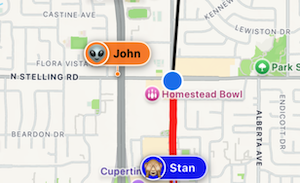
Group members appear directly on the map with their nick and marker color.
If Nick and data is selected, the app can show the member nick plus selected data such as speed, altitude, or last update.
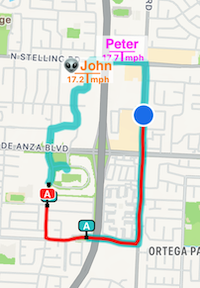
If Nick is selected, the map uses a larger high-contrast nick label. If the first character in the nick is an emoji, it is shown in the avatar circle.
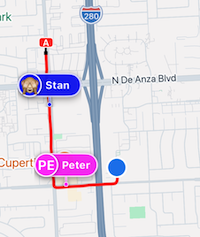
Tap a group member annotation on the map to open member actions. The action sheet shows the member’s last update, speed, distance from you, and coordinates.
Available actions:
Center on a mapmoves the map to that member.Navigateopens navigation options to that member’s current location.Show line to the memberdraws a line from you to that member. Tap the same action again to hide the line.Channel membersopens the member list for the active group channel.Channel settingsopens the channel settings screen.
Find and focus group members
When GPS tracking is active and a group channel is active, the map can help you move from your own location to the group. Group member search and group focus controls are available only in that active sharing state.
First move the map with your finger. This exits the normal own-location centering mode and makes the map controls available for exploring the group.
Use the search button to find map objects, including group members. Pick a group member from search results to center the map on that person.
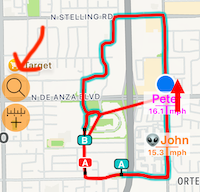
Use the group focus button to fit the active group on the map.
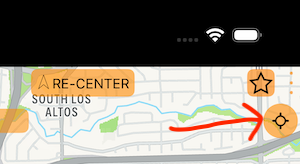
To return to normal centering on your own location, tap the RE-CENTER button at the top of the map.
Map annotations
The Map annotations section controls how group members appear on the map.

Choose Nick and data when you want more information at a glance. Choose Nick when you want larger labels that stay readable while navigating.
For Nick and data, choose the data field that matters most:
Speedshows each member’s current speed.Altitudeshows each member’s altitude.Last updateshows how fresh the member’s last location is.
Share a channel
You can share a channel from the channel row or from the active channel actions.
- Open
MENU, tap the small settings button inside theNEW TRACKmenu item, then tapSharing channels. - Find the personal or group channel you want to share.
- Tap
Share. - Choose how to send the channel link.
If the channel is password protected, the app can share the link without the password or include the password in the shared message. For better privacy, send the password separately when possible.
People who receive a personal channel link can open it in a browser and follow your live location when the personal channel is enabled and live sharing is active.
People who receive a group channel link can open the group web page in a browser. If they want to send their own location into the group, they should join the group channel in the app.
Join a group channel
Join a group channel when someone sends you a group channel link or code.
- Open
MENU, tap the small settings button inside theNEW TRACKmenu item, then tapSharing channels. - Tap
Join group channel. - Paste the channel link or enter the channel code.
- Enter the channel password if the channel asks for one.
- Choose your nick and marker color.
- Confirm the join.
After joining, turn on Share location with channels and start GPS tracking when you want the group to receive your location. Joined channels stay saved so you can use them again later.
Live updates
Update interval, seconds controls how often the app sends your location to enabled channels and refreshes the selected group on the map.
Lower values update more often but use more battery and data. Higher values are better when you only need occasional position updates.
Privacy and control
Channel sharing is controlled locally on your device.
- Turning
Share location with channelsoff stops publishing to channels without deleting your saved channels. - Stopping GPS tracking or pausing counters stops channel publishing.
- Leaving a group stops sharing your location with that group.
- Removing a saved channel removes it from this device.
- Personal channels are one-way: browser viewers do not send their location back to you.
Good first setup
- Create or join a group channel before you start.
- Turn on
Share location with channels. - Start GPS tracking when you are ready to be visible.
- Pick the group channel you want to show on the map.
- Use
Nick and datawithLast updateif you want to check whether everyone is still updating. - Increase the update interval when battery life matters more than frequent updates.
