Video transcripts and captions
When you narrate a video — an inspection remark, a survey note, an observation spoken while recording — those words stay locked inside the audio track. A transcript turns them into text that works for you: read the recording instead of replaying it, jump straight to the moment something was said, correct a misheard word, show captions over the video, and find the recording later by searching for what was said in it.
Transcription runs entirely on the device — the audio never leaves your iPhone, and it is fast: a several-minute recording transcribes in seconds. It works on any saved video that has an audio track, including recordings made before this feature existed. Transcription requires iOS 26 or later.
Create a transcript
Open a saved video from MENU > VIDEOS, tap the ⋯ button, and choose
Transcribe audio:

Pick the spoken language
The list leads with your own languages — the ones you use on this iPhone, in the order they have in iOS Settings — followed by any other language whose model is already downloaded. The first entry is pre-selected, so a recording in your everyday language is one tap away:

Every language in the list runs entirely on your iPhone. One marked Requires download fetches its files the first time you pick it; after that it works
with no network at all.
There are two levels of quality behind the list. Most major languages use Apple’s newest and most accurate recognition; the rest use the recognition your iPhone uses when you dictate a message — still on the phone, still with tappable timings, just a little rougher on difficult speech. You don’t have to choose: pick the language that was spoken and the app uses the best it has for it.
- Apple’s newest recognition: Cantonese, Chinese, English, French, German, Italian, Japanese, Korean, Portuguese, Spanish.
- Dictation recognition: Arabic, Catalan, Croatian, Czech, Danish, Dutch, Finnish, Greek, Hebrew, Hindi, Hungarian, Indonesian, Malay, Norwegian Bokmål, Polish, Romanian, Russian, Slovak, Swedish, Thai, Turkish, Ukrainian, Vietnamese.
Regional variants are offered where they exist — English in nine, Spanish and French in four each.
Watch it build
The transcript builds in front of you: recognized lines stream into the panel
as they are finalized, with the progress shown against the video duration.
Cancel transcription stops the run without keeping anything:

If the video has no audio track — for example, the microphone was off for that recording — the menu explains why transcription is unavailable and offers to import subtitles instead. If no speech is recognized at all, no transcript is kept and the video stays ready to try again.
Read the transcript, jump the video
Every line shows its time in the video. Tap a line to jump the replay to that moment; during playback the current line is highlighted and the panel follows along:
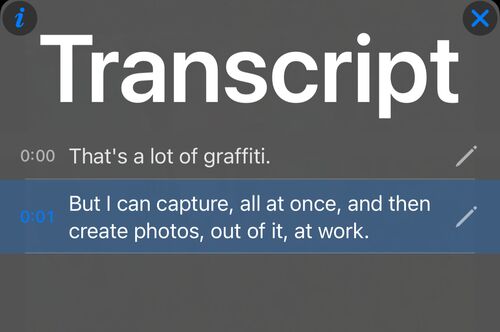
The panel closes with the X button or a tap outside it; the replay stays
where you left it. The i button in its top-left corner opens this page.
Fix what was misheard
Speech recognition is good, but real recordings have wind, traffic, and half-spoken sentences. Here the recording said “That’s a lot of graffiti”, and the first line came back as a question — and the last words “at work” became “attack”:

Every line carries a pencil. Tap it to correct the text — or to delete the line entirely, for example when background chatter was transcribed as words:
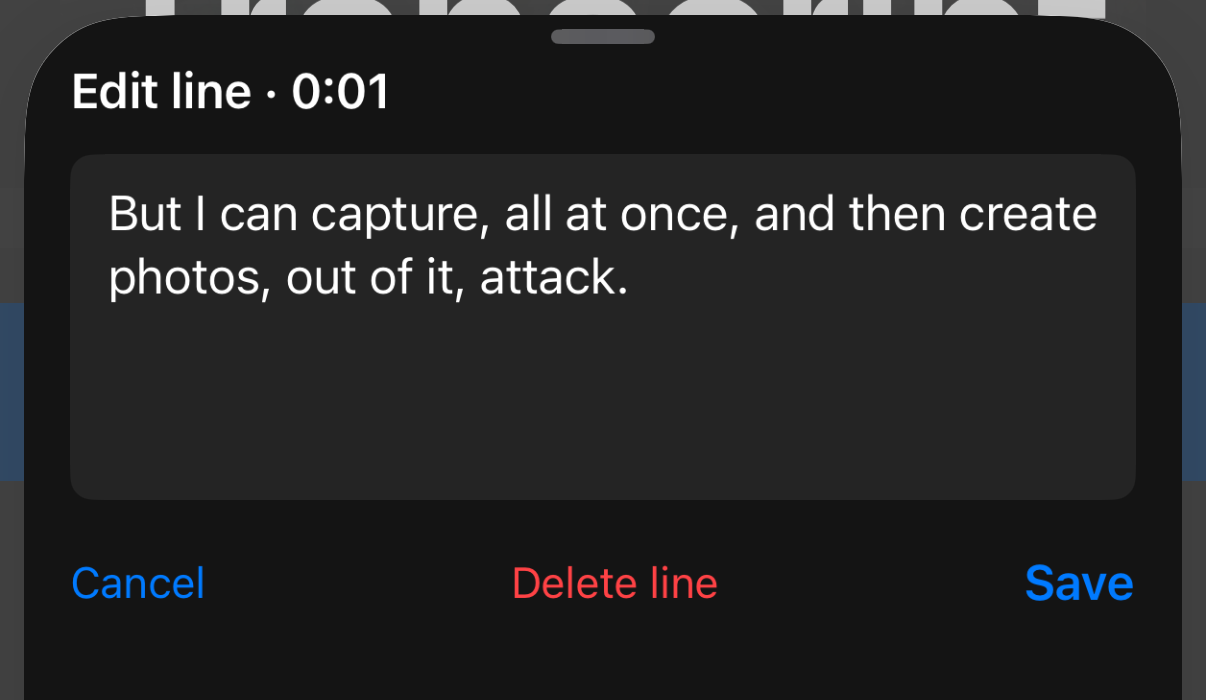
Edits are saved into the transcript immediately: the panel, captions, search, and any subtitle export all use the corrected text, while the line timings stay untouched. An edited transcript is treated as your data — re-transcribing asks for confirmation before replacing it. Deleting every line removes the transcript completely.
Captions over the video
Choose ⋯ > Transcript > Show captions to display the spoken line over the
video while it plays:

Captions are placed to work with the data overlays — above the notes and
address rows and clear of the other overlays — and they always follow the
current transcript, so a corrected line shows corrected captions. While
captions are enabled, stamped exports include them too, burned in at the
same position. The clean original export never includes captions; use
Share subtitles for a subtitle file instead.
Copy, share, export subtitles
After transcribing, the ⋯ > Transcript menu collects everything in one
place:

Copy textandShare texthand over the transcript as plain text — ready for a report, a message, or a note.Share subtitlesproduces a standard.srtsubtitle file with the spoken lines, timed to the video, for video editors and players. This is separate from the data-overlay subtitle file that a video export can attach.Re-transcriberuns the recognition again, for example in a different language.Helpopens this page, as does theibutton in the transcript panel.
Correct it on a computer, bring it back
Long recordings are often easier to correct on a big screen with a keyboard.
Share subtitles gives you the .srt file; open it on your Mac or PC in a
subtitle editor — or in any plain text editor — fix the wording there, and
bring the result back with ⋯ > Transcript > Import subtitles, choosing the
file in Files.
The timings in the file are used as they are, so corrected lines still land on the right moments of the video, and the imported text immediately drives the panel, captions, library search, and later subtitle exports. Because subtitle files split long sentences into readable cues, an imported transcript can show slightly different line breaks than the original — the words and their timings are unchanged.
Import is not limited to text this app produced: subtitles written or translated elsewhere can be brought in for any video, including a recording made with the microphone off, which has nothing to transcribe. An imported transcript counts as your own work, so replacing it — by importing again or re-transcribing — asks for confirmation first.
Remove a transcript
⋯ > Transcript > Remove transcript clears it after a confirmation: the text,
the TRANSCRIPT hint in the library, and the captions all go away, and the
video is ready for a fresh transcription or import. The recording itself and
its exports are untouched.
Find videos by what was said
Videos with a transcript show a TRANSCRIPT hint in the video library, so
you can see at a glance which recordings still need one:

The library search also looks inside transcripts: search for a word you remember saying — a place, a name, an observation — and the recording where you said it shows up.
Find a moment inside a video
Find a spoken comment without replaying the whole recording. Open a video with a transcript and choose ⋯ > Transcript > Show transcript. Type a word or phrase in Search transcript: the list immediately narrows to matching lines, with their original timestamps.

Tap a matching line to jump straight to that moment in the video, or tap its pencil to correct the wording. Clear the search using the × inside the search field to see the full transcript again. Searching leaves the saved transcript and captions unchanged.
Good to know
- Transcription is on-device and requires iOS 26 or later; nothing is uploaded.
- Each language model is downloaded once and then works offline.
- Works on any stored video with an audio track, including older recordings; a video without audio can still receive an imported subtitle file.
- The transcript lives with the video: it follows it through Trash and