GPS Camera 55. Bluetooth sensors on video: heart rate, cadence and wheel speed overlays
Film the ride and show what it took: your heart rate, your cadence and the wheel speed, live on the camera screen, beside speed, the map and the motion gauges. The readings are recorded with the video. You can stamp them into an exported copy, see them in replay, or export them alone as transparent overlay videos for your editor.
The values come from your own Bluetooth sensors, connected right here in the camera settings (below).
Turn the overlays on
Switch to Video shooting , tap Settings, then Video settings → Video overlays. The layout editor has a Bluetooth sensors section at the bottom of its list, with three tiles:
- Heart rate, from the heart-rate strap;
- Cadence, from the cadence sensor;
- Wheel speed, from the speed sensor, in the app’s speed unit. It is separate from the GPS Speed tile, and useful where GPS speed fails: in tunnels, under trees, on a trainer, riding slowly.
Switch a tile on in its row. In the preview it shows your real value while the sensor is connected, otherwise a sample. Place it, resize it and stack it like any other overlay ( Video recording ).
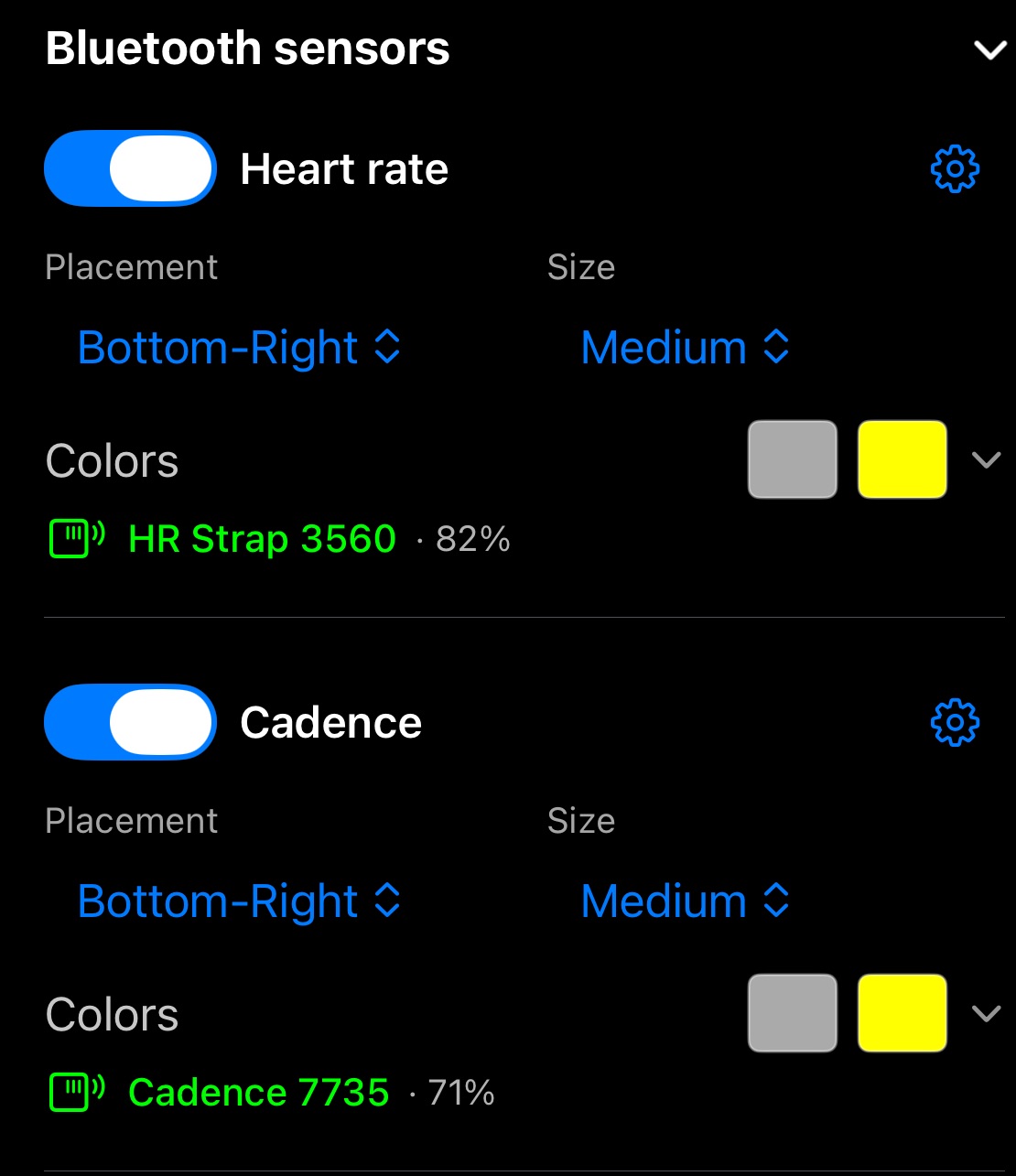
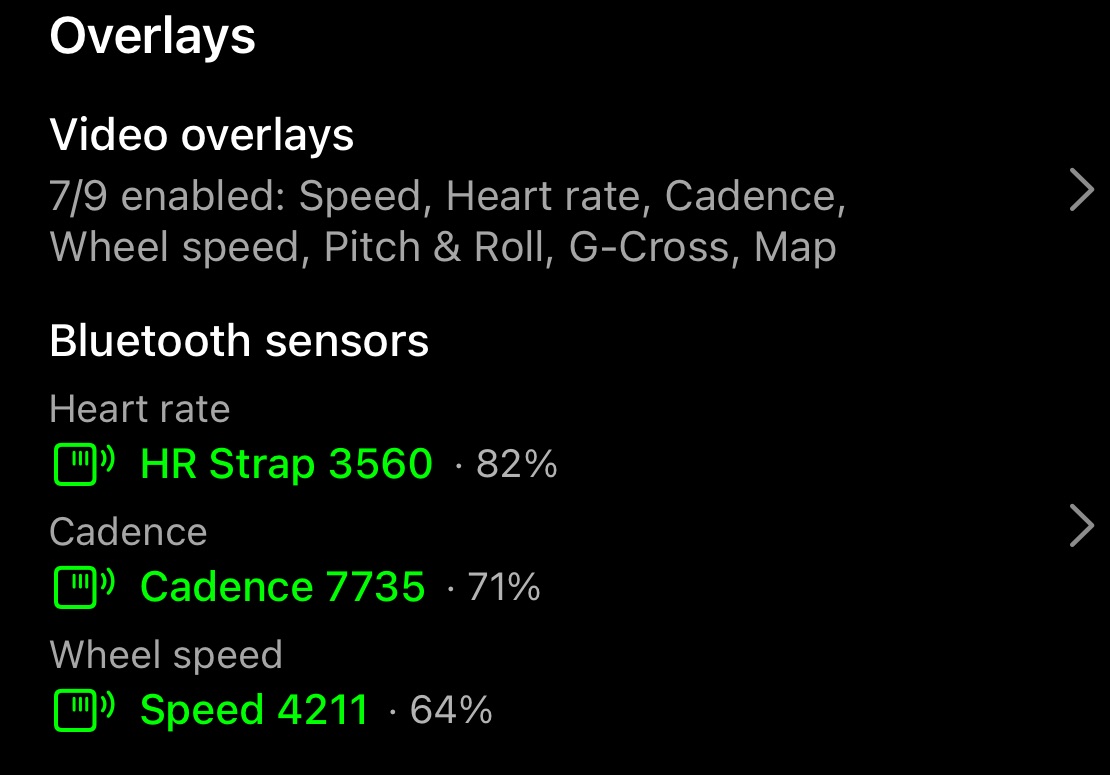
Under each tile’s row, a status line shows which sensor feeds it: its name, colored as in the Bluetooth panel (green when connected), its battery, and a hint when it isn’t connected. The row’s gear opens the sensor’s menu:
- Search for sensors, to connect one;
- Disconnect & Forget, or Forget;
- Set wheel diameter, for Wheel speed.
Video settings → Bluetooth sensors gives the same overview for all three tiles in one place.
Connect your sensors
- Heart-rate straps and cycling speed and cadence sensors using the standard Bluetooth profiles work: Garmin, Polar, Wahoo, Magene and most others. Power meters and sensors that only speak ANT+ don’t.
- Each tile has one sensor: Heart rate the strap, Cadence a sensor on the crank, Wheel speed a sensor on the wheel hub. Most cycling sensors measure one thing at a time, set by where they are mounted or by their mode (Garmin “SPD” and “CAD”). A true combined unit is connected to both Cadence and Wheel speed.
- Wake the sensor. Put the strap on, or spin the wheel or the crank a few times.
- Open the tile’s gear in the editor (or Video settings → Bluetooth sensors) and choose Search for sensors. The first time, the app asks for Bluetooth access; allow it.
- Tap Connect next to your sensor. Its name turns green.
The app remembers the sensor and connects to it again by itself while the camera shows a sensor tile, the editor or the overview is open. If you tap Connect while the sensor is asleep, the app waits for it (“Waiting for <name>. Wake the sensor or put it on.") instead of giving up.
For Wheel speed, set your wheel’s measured diameter: gear → Set wheel diameter. Wheel speed is the diameter × π per revolution.
On the camera
Each tile shows the sensor’s name on top, then the value with its unit, then MAX, the highest value since the tile appeared, with the sensor’s icon.
- Sensor not connected yet: the tile shows the reason in orange in place of the value, for example “Seeking. Ensure sensor is in range & active.”. It never hides, so your layout doesn’t jump when a strap connects mid-take.
- No reading for 3 seconds: “–” instead of a stale number.
- Tap a tile when you are not recording to open its sensor’s menu. Video overlays in that menu takes you straight to the editor. While you record, taps go to the camera as usual.
Recorded with the video
When a sensor overlay is on and its sensor is connected, the video records the readings alongside the picture. The original video stays clean; the readings are used:
- in replay, where the tiles show the values of the moment and MAX the highest so far;
- in stamped exports, burned into the copy you share;
- as overlay videos: More → Full video → Overlay videos offers Heart rate, Cadence and Wheel speed, each as its own transparent video file, like Speed or Map ( Overlay videos for footage from another camera ).
A tile is offered for export only when the video actually recorded that sensor. In the videos list, a recording’s “Recorded overlays” line names Heart rate, Cadence or Wheel speed only when there are readings.
Loop recording keeps the readings with each loop.
GPS Camera 55 records only on screen: leaving the app stops a recording, and the sensors pause until you come back. They reconnect by themselves when you return.