Export/sharing file name pattern for video files.
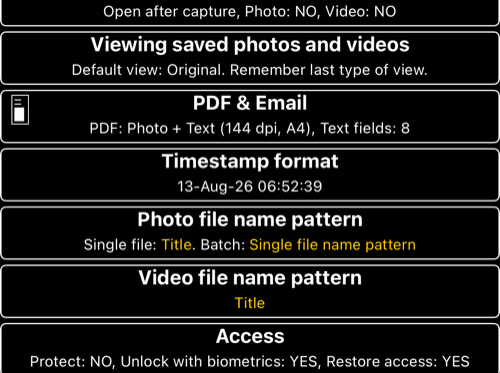
Open Settings > Video file name pattern to choose the fields used in a video file name when the video is saved, shared, or exported. The default pattern is the video title.
Tap + to add a field. Tap an existing field to remove it or change its parameters. The available fields are:
- Title — the title from the Video notes editor.
- Text — custom text entered directly in the pattern.
- Capture date — the photo or video capture date and time.
- Coordinates — the coordinates at capture time.
- Altitude — the altitude at capture time.
- Heading — the heading at capture time.
- Tags — tags from the Video notes editor.
- Note — the note from the Video notes editor.
- Address — the address associated with the recording.
There is one video pattern, so there is no separate batch pattern on this screen.
Format the capture date
When Capture date is present, the editor shows a Date/time format field and a sample. Enter a date format string or choose one of the pre-canned examples. This format affects the date text in the video file name only.
The video file-name date is independent from:
- the Timestamp field shown in the Notes overlay;
- the automatic title in the Video notes editor; and
- the timestamp/subtitle data displayed during replay or stamped export.
To configure the visible overlay as well, see Timestamp, notes overlay, and file-name dates .
Example
For a title-based pattern, add Capture date after Title and use a format such as yyyy-MM-dd-HH-mm-ss. A shared video can then have a name similar to:
Inspection 12_2026-08-13-06-54-20.mov
The exact result depends on the title, date format, and any custom text you add.
File-name patterns change the name of the exported/shared file; they never burn text into the video. Configure the Video overlays separately in Settings > Video settings > Video overlays.