Timestamp, notes overlay, and file-name dates.
A date and time can appear in several different places in GPS Camera 55. They are related, but they are not controlled by one switch:
- Timestamp in the Notes overlay is text stamped into a photo or video overlay.
- Timestamp format chooses the language, date order, and time style used by that overlay field.
- Automatic titles are the title shown in the Notes editor and can use their own pattern.
- Capture date in a file-name pattern puts the capture date into a saved, exported, or shared file name.
The steps below cover each place and show how to configure a complete workflow.
Show or hide the timestamp on a photo or video
The visible timestamp is one of the fields in the Notes overlay. It is not a separate field on the old Capture settings screen.
- Open
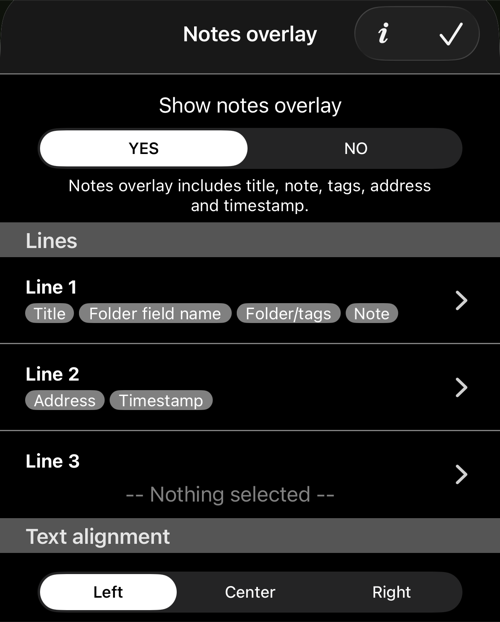
Settings > Notes overlay. - Set Show notes overlay to
YES. - Tap any line where you want the timestamp to appear.
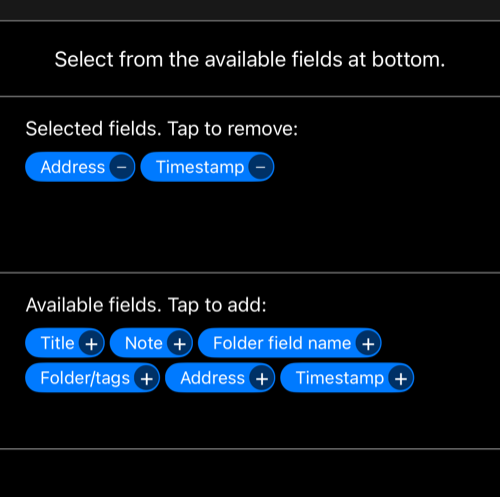
- In the line editor, tap Timestamp under Available fields. Tap to add:.
- Tap Done in the line editor and then Done on the Notes overlay screen.
You can put the timestamp on line 1, 2, or 3. To remove it, open that line and tap the selected Timestamp field. Hiding the whole Notes overlay also hides the timestamp, while leaving the photo/video data itself intact.
Choose the timestamp format
Open Settings > Timestamp format. Pick a locale and format from the wheel, then tap the checkmark to save it. The picker includes the languages available on the iPhone and the app’s supported localizations.
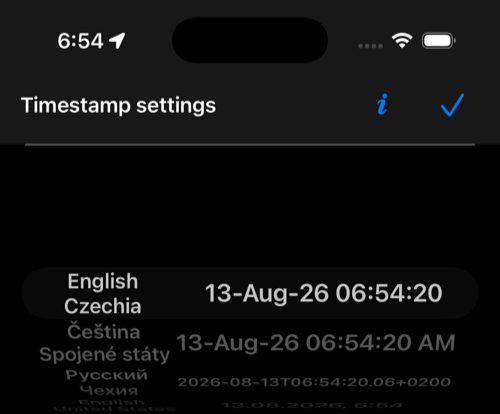
This setting controls the Timestamp field in the visible Notes overlay. It does not change the automatic photo/video title and it does not change a file-name date format; those are configured separately below.
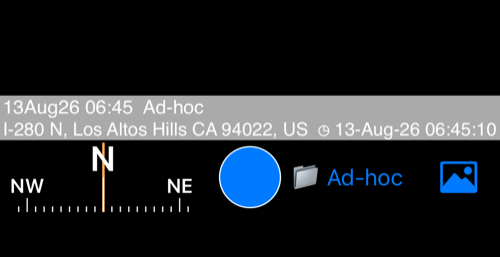
Automatic photo and video titles
The Notes editor can generate a title from the capture date and time. The title is separate from the visible Timestamp field, so changing one does not silently change the other.
For photos, use Photo title pattern to replace the default date-based title with a pattern that suits your work. The title pattern is also a source field that can be inserted into a photo or video file name.
Put the capture date in exported or shared file names
File-name patterns control the names of the files created by Save, Share, or Export. They do not control what is drawn on the photo/video overlay.
Photos
Open Settings > Photo file name pattern, tap +, and add Capture date to the single-file pattern (and, if needed, to the batch pattern). When Capture date is present, the screen shows a Date/time format field where you can enter a format string or choose one of the examples.
See the complete Photo file name pattern guide.
Videos
Open Settings > Video file name pattern, tap +, and add Capture date to the pattern. Set the Date/time format that appears below the pattern, then tap Done. The pattern is used when a video is saved/shared/exported; it does not affect the visible Notes or Video overlay.
See the complete Video file name pattern guide.
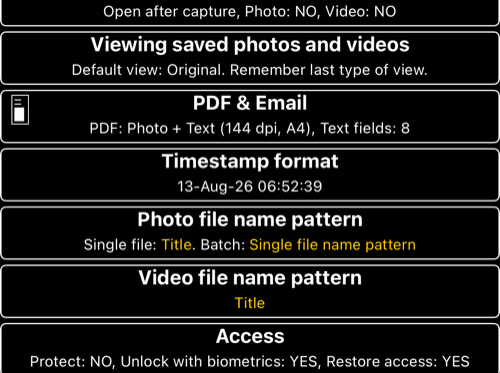
A complete setup example
To show a timestamp on the media and also include the same capture moment in file names:
- In
Settings > Notes overlay, turn the overlay on and add Timestamp to the line you want. - In
Settings > Timestamp format, choose the display format and language for the stamped overlay. - If the automatic title should be more descriptive, configure Photo title pattern or edit the title in the Notes editor.
- In
Settings > Photo file name patternand/orSettings > Video file name pattern, add Capture date and set its Date/time format. - Capture a photo or video, then save, share, or export it. The stamped overlay, title, and file name now follow their respective settings.
If the timestamp is missing
- If the whole bottom overlay is missing, open
Settings > Notes overlayand set Show notes overlay toYES. - If the overlay is visible but has no date/time, open the relevant line and add Timestamp under Available fields.
- If the date/time is visible but looks wrong, adjust
Settings > Timestamp format. - If the overlay looks right but the exported file name has no date, add Capture date to the relevant photo/video file-name pattern. The overlay setting alone never adds a date to a file name.