GPS Camera 55. Camera buttons and Bluetooth remotes.
Since version 5.2, GPS Camera 55 uses Apple’s standard camera-button support on iOS 17.2 and later — the same mechanism as the built-in Camera app.
Buttons that trigger the shutter
With the camera screen open, the following presses take a photo in Photo mode and start or stop recording in Video mode:
- The volume up and volume down buttons.
- The Action button, on iPhone models that have one.
- Camera Control, on iPhone 16 and later.
- On iOS 26 or later, a stem click on AirPods equipped with the H2 chip. Availability may vary by region.
The camera screen must be open and in front. Hardware buttons do not capture from other screens or while the app is in the background.
What changed in version 5.2
Earlier versions detected volume-button presses by watching the system volume level. That workaround could produce accidental captures and knew nothing about the newer hardware. Version 5.2 switched to the capture support built into iOS: presses are delivered reliably, accidental captures are gone, and the Action button, Camera Control, and AirPods clicks work automatically.
Hardware-button capture requires iOS 17.2 or later. On earlier iOS versions, use the on-screen shutter.
Bluetooth shutter remotes
iOS decides which connected accessories can trigger the camera; an app cannot extend that list. The quick check: if a remote’s button triggers the shutter in Apple’s built-in Camera app, it also works in GPS Camera 55.
Inexpensive remotes differ in how they pair. Some are seen as a Bluetooth keyboard and send a volume keystroke; on current iOS versions such presses may only change the volume without ever reaching the camera — in the built-in Camera app as well. This is system behaviour, not something specific to GPS Camera 55. Others reach the shutter and work fine. Two minutes with the built-in Camera app tells you which kind you have before you rely on it in the field.
Remotes we tested
A plain Bluetooth shutter remote
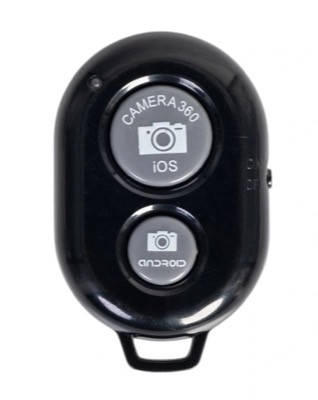
The little keyfob remotes sold for a few dollars — usually with two buttons, one marked iOS and one marked Android, and a power switch on the side. Pair it in Settings > Bluetooth, open the camera screen in GPS Camera 55, and the iOS button takes a photo. Taking the picture is all these remotes do: there is no focus, no zoom, and no way to switch modes. For a phone on a tripod, a pole, or a windscreen mount — where the point is simply not to touch the phone — that is usually all you need.
Remotes of this shape come from many makers and are not all built the same, so test yours in the built-in Camera app before a trip.
PGYTECH MagCam 2 Phone Grip
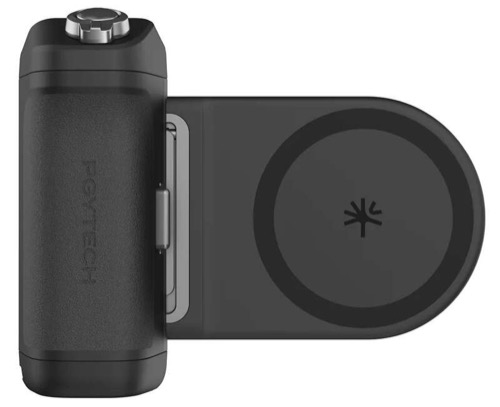
A magnetic grip that snaps onto the back of the phone and gives it a proper handle, with a shutter button under your index finger and a zoom control on the grip. What it does with GPS Camera 55:
- Press the shutter button — takes a photo.
- Hold the shutter button lightly — sets focus and exposure and holds them while you keep the button down, the way a half-press works on a camera. Release, and the camera goes back to adjusting on its own.
- Zoom in and zoom out — drives the viewfinder zoom, exactly as the zoom chip on screen does.
- Switching between Photo and Video mode — not yet. The grip’s mode control does not change the mode in GPS Camera 55; support for it is planned for a future version. Until then, switch modes on screen and use the grip for everything else.
The grip is also a MagSafe power bank. Its 3000 mAh battery charges the phone through the same magnetic plate that holds it, with no cable and nothing extra to carry. It will not refill a modern iPhone from empty, but as a reserve in the field it covers the case that empties a camera phone fastest — a long day of photos with the screen on, GPS running, and no socket anywhere near.
More hands-free options
- Apple Watch: the GPS Camera 55 app on Apple Watch is a remote for the iPhone camera — take a photo, start and stop video recording, switch between Photo and Video, and mute the microphone, with status right on your wrist. Open the camera screen on the iPhone, then control it from the watch; a watch-face complication opens the remote quickly.
- Siri and Shortcuts: Siri cannot press the shutter itself, but the app’s shortcuts in the Shortcuts app open GPS Camera 55 directly on the camera screen with the photo title and note fields pre-filled — so a voice command can get everything ready to shoot.
- Voice Control: with Apple’s Voice Control feature (Settings > Accessibility > Voice Control, when available in your language) you can operate the whole camera screen by voice — show item numbers and speak the number next to the shutter. This works independently of Bluetooth remote support.
If a button does not capture
- Confirm the iPhone runs iOS 17.2 or later.
- Open the camera screen and keep it in front while pressing the button.
- For a Bluetooth remote, test it in the built-in Camera app first. If it does not trigger the shutter there, it cannot trigger GPS Camera 55 either.