Back up, share and restore the app settings
Settings you have tuned for one kind of work are worth keeping. This saves all of them to a single file you can put away, move to another device, or hand to a colleague so they do not have to go through the screens one by one.
Two uses, and both are common: switching yourself between profiles — a survey setup and an inspection setup are rarely the same — and onboarding someone new in one import.
Open MENU > SETTINGS, then Settings: Backup, share, restore. The screen is
called Manage app settings.
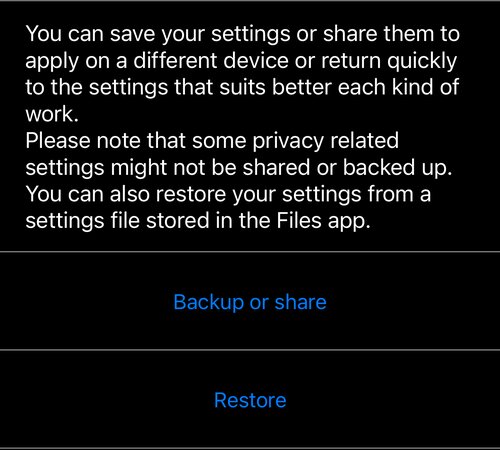
Backup or share
Backup or share archives everything — including your watermark image — and opens the usual share sheet. Anything on the phone can take it from there: mail, Messages, AirDrop, Files, and any file provider you have installed, such as Dropbox, Box or OneDrive.
The archive is a single file with the extension .szf — a settings zip
file. The message that goes with a shared file names the app it came from and
links back to this page, so whoever receives it knows what to do with it.
Restore
Restore is the row underneath it. It opens the Files picker; choose a .szf
file and its settings are applied. The file can be anywhere Files can reach —
on the device, in iCloud Drive, in Dropbox — so a settings file someone sent you
can be restored without leaving the app.
There is a second way in, useful when the file arrives as an attachment: tap the file wherever it is, use the Action button and choose GPS Camera 55 from Open in. If the app is not in the first row of options, scroll that row, tap … and pick it from the list.
Restoring only accepts .szf files. Anything else, and the app says so rather
than guessing.
What is not included
Some privacy-related settings are deliberately left out of the archive, and the screen says so. A settings file is safe to hand to a colleague; it is not a copy of your account.
Tinkerer?
The format is open on purpose. Change the extension from .szf to .zip and
unpack it, and you get plain-text JSON — one file per settings component, with a
note explaining every entry. The watermark image sits in the camera
subfolder.
The intent is that you can build presets for fast onboarding. You can also just use the app, which is the sure way to produce a valid archive.
If you want more inline documentation on individual entries, ask us at support@blocoware.com .
Related pages
- Photo capture settings — one of the groups that travels in the archive
- Watermark — the image that goes with it
- Notes editor settings — another group in the archive
- PRO PACK — what the paid version unlocks