Crop, resize, tilt and rotate a photo
A photo taken one-handed off a ladder is rarely straight, and a frame that includes half a van is rarely the frame you want to hand over. The preview has a tool for both.
Its button sits to the right of the Stamp button in the photo preview toolbar:

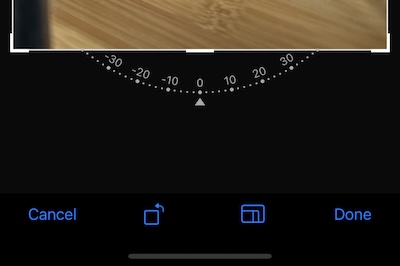
The tool does four things:
- Crop — drag the frame to keep the part that matters.
- Rotate — in 90-degree steps, for a photo that came out sideways.
- Tilt — the fine dial, for straightening a horizon or a wall by a degree or two.
- Resize — with aspect ratios including 1:1 (square), 2:3, 3:4, 4:5 and 9:16, so an image can be shaped for the report or the channel it is going to.
The result is the photo itself, so everything that is drawn over it follows along: the stamp , the notes overlay and the watermark are applied to the cropped image when you view or export the stamped copy.
Related pages
- Drawing tools — arrows, shapes and text on top of the photo
- Review photos: original and stamped — the two copies
- Photo capture settings — whether a shot opens in preview at all