Button colours: make the controls readable in your light
The default blue is easy to lose in direct sunlight, and it is not the easiest colour for everyone to pick out. You can change it.
Open MENU > SETTINGS, then Button colors.
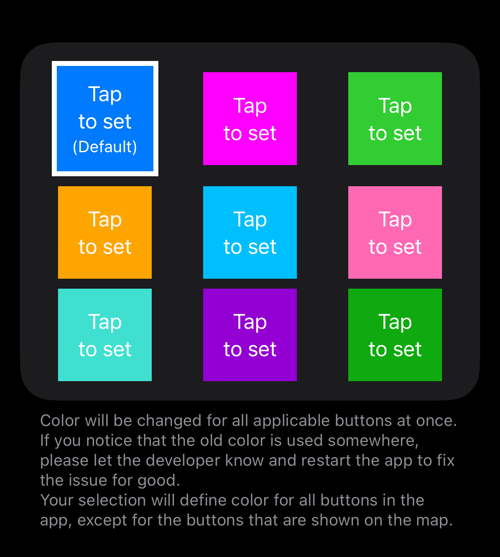
Tap a tile to set it. The change applies to every applicable button at once — there is no per-button choice — and it takes effect immediately.
Two limits worth knowing:
- Buttons drawn on the map keep their own colours. They have to stay legible against map tiles, so they are excluded.
- If a button somewhere still shows the old colour, restarting the app settles it. That is worth reporting, too — the screen says so itself.
Bright orange or yellow tends to work best in strong sun; the cyan and green tiles are the ones to try if blue is hard for you to distinguish.
Related pages
- Viewfinder controls — what the camera screen’s controls do
- Camera buttons and Bluetooth remotes — the hardware alternatives to tapping
- Power & Display — the other screen-behaviour settings