Batch updates: Change several photos and points at once in GPS Camera 55
Finished a survey and need to give every photo the same address or tags? Captured them in the wrong collection, or want consistent titles? Batch changes lets you select the saved items once, update their fields, copy or move them to another collection, and review the result before applying.
Select the items
From the camera screen, open Points with the photo thumbnail or Menu → Points. Tap Select, choose the points you want, then tap the rectangle-and-pencil Change selected button in the bottom toolbar. Select all chooses the points currently shown in that list.
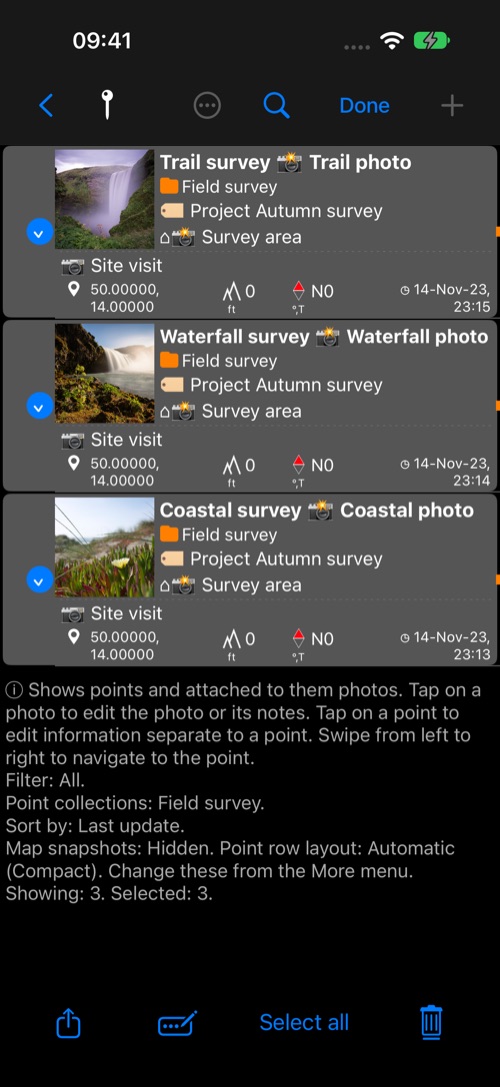
The batch screen keeps the selection count at the top, including how many selected points have photos. Start in one collection; the screen will tell you what each action and field will change before you tap Apply.
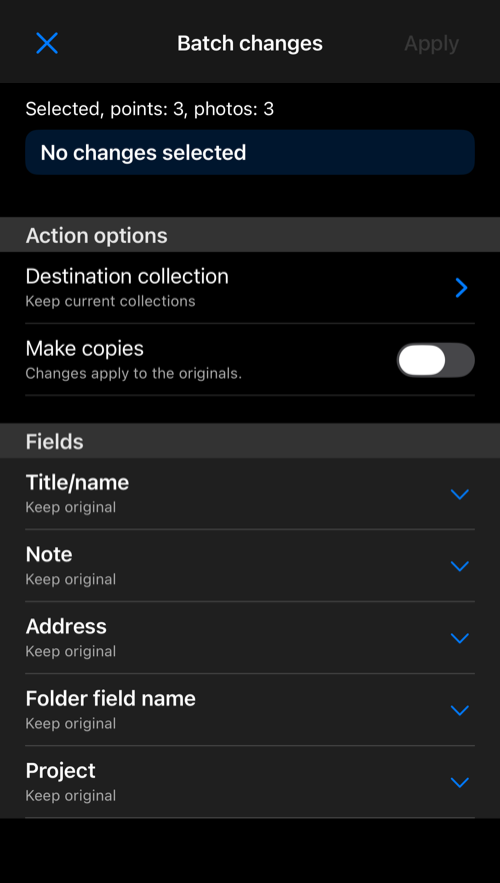
Choose what to do
Leave Make copies off to update the selected items. Turn it on to keep the originals and create copies. Tap Destination collection to move or copy into another collection; you can create a collection in the picker. Without a destination, copies stay in their current collections.
For just one point, swipe its row in Points and tap Copy to open the same screen with Make copies already selected.
Open only the fields you want to change. Each field starts at Keep original. Set text gives every selected item the same value; Clear removes a value. For fields shared by a point and its photo, Apply to photos and Apply to points let you choose where the change goes. For example, you can put an inspection note on both, or correct only the photo’s address. Fields that belong only to photos appear only when the selection contains photos.
The available fields are Title/name, Note, Address, Folder field name, and Folder. The last two belong to photos: set Folder field name to Tags, then set Tags to inspection, north wing. You can also set Folder from the resulting collection name.
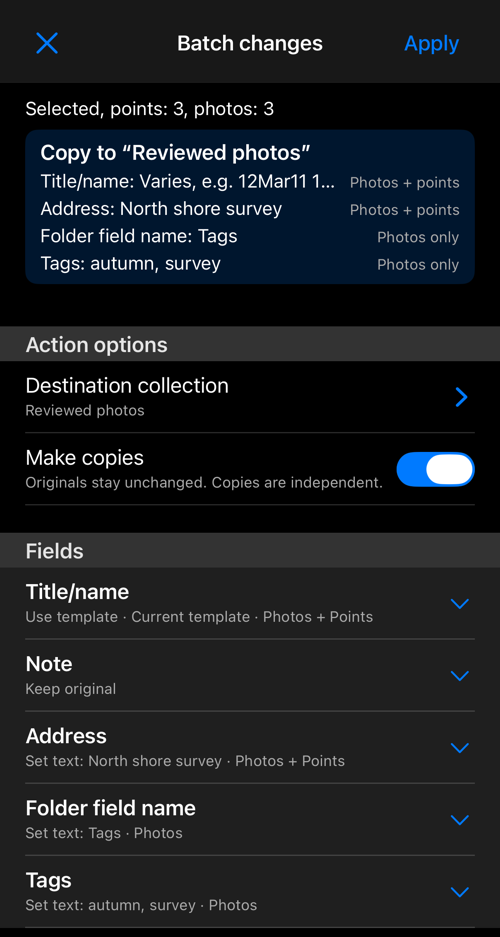
Name photos with a template
For Title/name, Use template offers the current photo title template or an Own template for this batch. The sample shows one resulting title before you apply. Your current capture template stays unchanged. If the template includes a sequence number, it uses the same configured sequence as photo capture and import. You can also choose a recently used template.
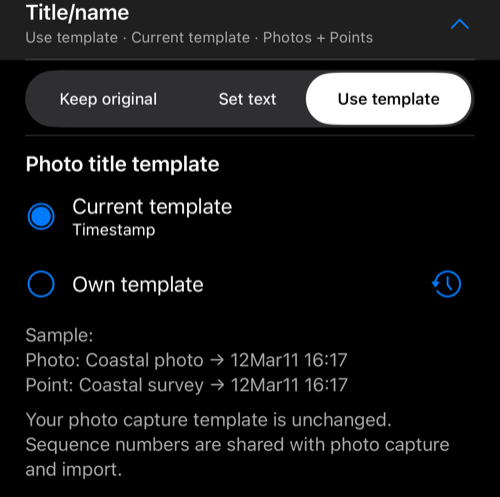
Review and apply
Read the summary at the top: it says whether you will update, copy or move the selection, where it will go, and which fields will change on photos, points or both. Tap Apply and leave the app open while the progress panel runs. A completed panel reports how many selected items finished; tap OK to return to the batch screen, then Close to return to Points. The original selection remains highlighted in the list.
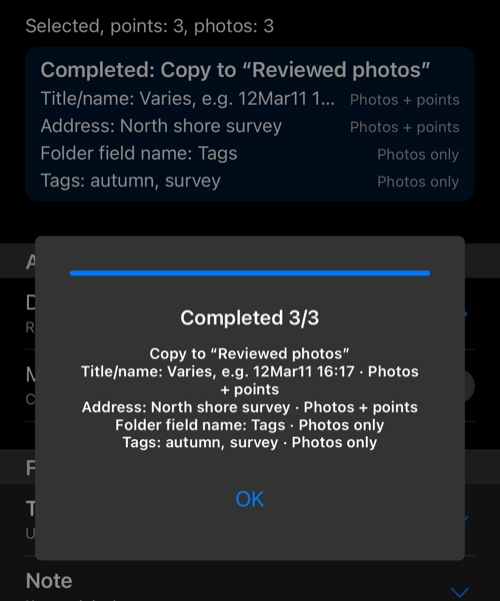
If an item cannot be changed, the panel explains the result and offers Details. Completed items stay saved; review the list before starting another batch. If you edit again after making copies, the app asks whether to apply the new changes to those copies, so it does not create another set by surprise.
Batch changes update saved point information and photo metadata. They do not redraw text already stamped into the visible pixels of an existing photo.
Related
- What’s new in version 5.5 — an overview of batch changes in this release.
- Point editor — change one point or photo at a time.
- Point editor: Advanced — review values from a point and its photo, and use Photo sync.