Fare editor - set up a taxi fare
A fare is the set of numbers the meter runs on: what a mile costs, what a minute costs, what the passenger pays before the car has moved. You can keep as many as you need — a day rate, a night rate, an airport flat rate — and switch between them per trip.
MENU ▸ Fares lists them.
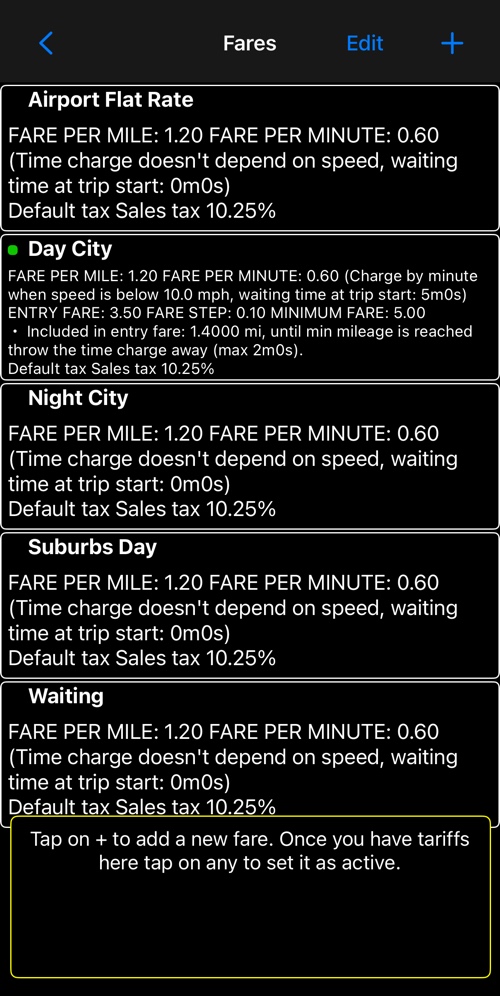
Each row is the whole fare in words, so you can check a rate without opening it. The green dot marks the fare the meter is currently using.
- Tapping a row makes that fare active and closes the list. That is the one-tap fare switch, not a way in to the settings.
- To change a fare, tap Edit first, then the row.
- + adds a new one.
The editor
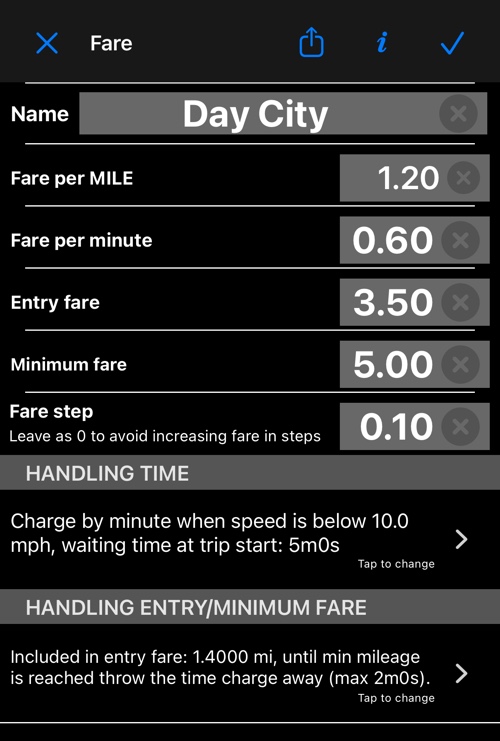
- Name — what you will see in the switch list. “Day City”, “Airport flat”, whatever you call it.
- Fare per MILE (or per KM, following your distance unit) — the distance rate.
- Fare per minute — the time rate. When it applies is the subject of time rules .
- Entry fare — charged as soon as the trip starts.
- Minimum fare — the floor. A short trip is billed this much however little the meter ran up.
- Fare step — rounds the meter up in increments as it climbs: set 0.10 and the fare moves 3.40, 3.50, 3.60 rather than penny by penny. Leave it at 0 and the fare is not stepped at all.
Below those, two rows carry the rules that are too involved for a single field. Each one describes its current setting in a sentence rather than showing a switch, so you can read the whole fare off this screen:
- HANDLING TIME — “Charge by minute when speed is below 10.0 mph, waiting time at trip start: 5m0s”. Tap it for time rules .
- HANDLING ENTRY/MINIMUM FARE — “Included in entry fare: 1.4000 mi, until min mileage is reached throw the time charge away (max 2m0s)”. Tap it for fare rules .
The second row stays greyed out, reading “When entry or minimum fare is used, you can setup minimum mileage they provide”, until you give the entry fare or the minimum fare a non-zero value. There is nothing for it to describe before that.
The buttons at the top
- ✕ leaves without saving, ✓ saves.
- The share button sends the fare to someone else — a colleague setting up the same rate, or yourself by email as a backup. One of the options mails it to the app’s developer for inclusion in the fare library , which is where the library’s entries come from.
- i explains the screen.
On Android
The same fields, with three differences:
- The editor groups them under headings — a basic-information section and a settings section — where iOS runs them as one list.
- You do not need an edit mode. The list offers editing per row directly, and deleting a fare is offered there too; iOS puts both behind Edit.
- There is no fare sharing. The share button, and with it the “send to the developer for the library” route, is iOS only.
More on fares:
Time rules ▪︎ Fare rules ▪︎ Fare library ▪︎ Sales tax