Fields to send to Square
Square takes an amount and one free-text note. That note is the only channel for anything else, so this screen decides how much of the fare gets packed into it.
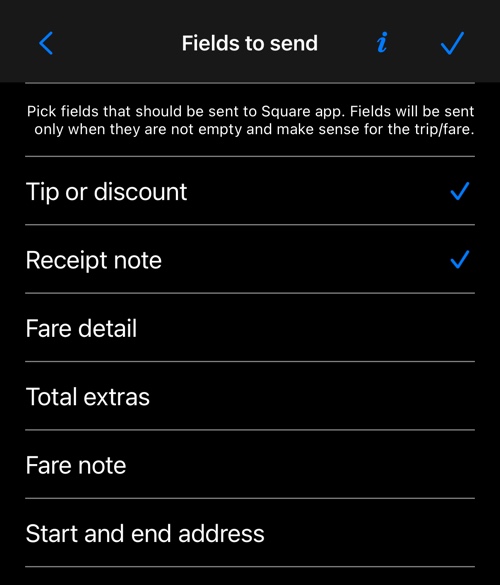
Each field you switch on is appended to the note, in the order below. Fields that are empty or make no sense for the trip are left out, so a plain trip does not produce a note full of blanks.
What each one adds
Turning them on one at a time, the note grows like this:
Tip or discount
Tip $0.88
Receipt note — the note you typed on the receipt.
Tip $0.88. Note on receipt
Fare detail
…Total distance 1.52mi, time 00:01:56. Fare: $3.00/mi $0.60/min. Minimum fare $4.00
Total extras
…Fare and extras total $5.12.
Fare note — the plain-language explanation of how the fare was worked out.
…Included in entry fare: 1.0000 mi, until min mileage is reached throw the time charge away (max 1m0s). Waiting time at trip start 0m32s (waived 0m32s). Time waived during trip: 0m58s.
Start and end address
…Start: Infinite Loop, Cupertino, CA, 95014, US. End: CA-85 N, Sunnyvale, CA, 95014, US
Where Square truncates it
This is the part worth knowing before you switch everything on. Square records the whole note, but the email receipt it sends the passenger shows only the first few lines.
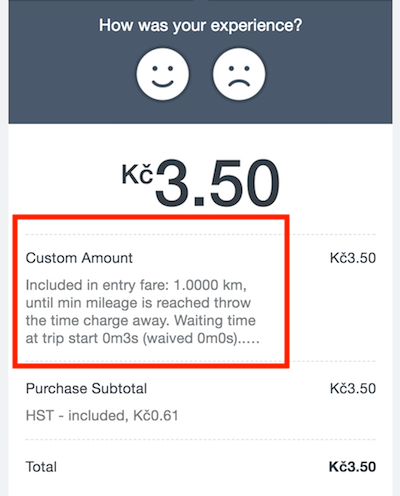
The full text is still there on Square’s own transaction record:
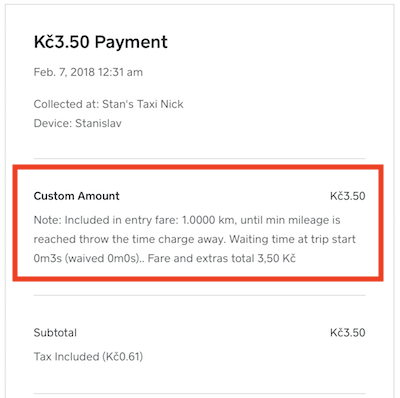
So if the passenger is meant to read something, put it near the front — switch on Receipt note and keep the note short — rather than relying on the fare detail that follows it.
The two screens above are Square’s own, and are shown in English in every language.
On Android
Square integration is iOS only.
More on Square: