Adjust the trip total
The meter says 7.10 and the passenger hands you 8. Or you promised a regular 10% off. Adjust total is where the fare and what is actually paid are reconciled — and the difference is kept, named and printed rather than quietly lost.
You get there by tapping Total on the simple or the detailed receipt.
Three ways to say it
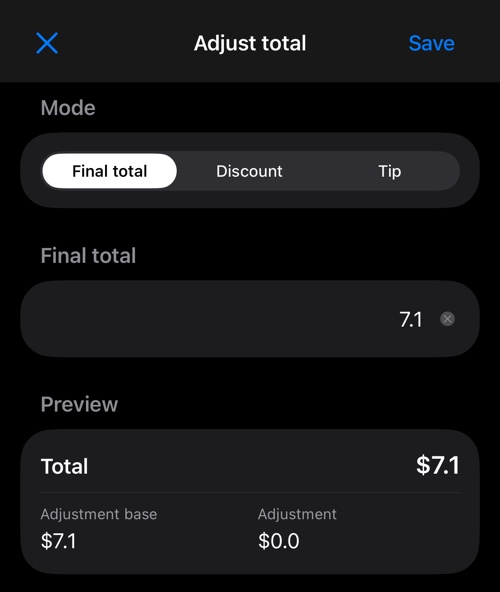
- Final total — type what the passenger pays. The field starts out holding the current total, so making 7.10 into 8 is a matter of typing 8. The app works out the difference itself and records it as a tip or a discount depending on which way you went.
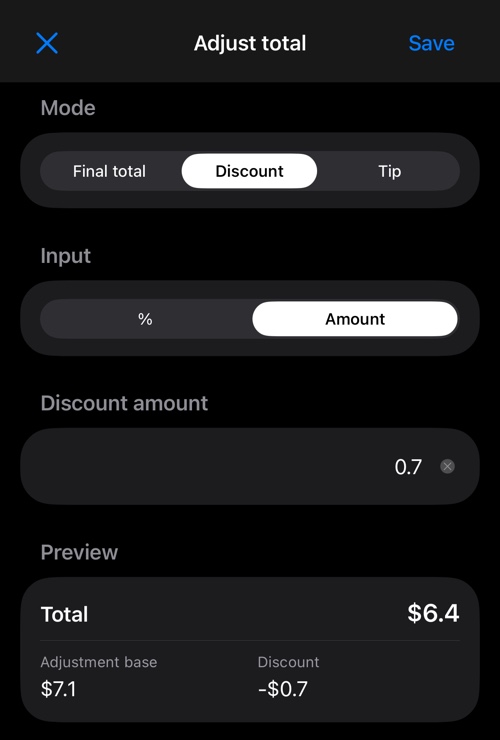
- Discount — take something off.
- Tip — add something on.
Discount and tip appear under the names you gave them. Rename them under Tip name and Discount name in advanced settings and the picker, the preview and the receipt all follow — Gratuity, Service, Rabatt, whatever your paperwork calls it.
Percentage or amount
A discount or a tip can be entered either way.
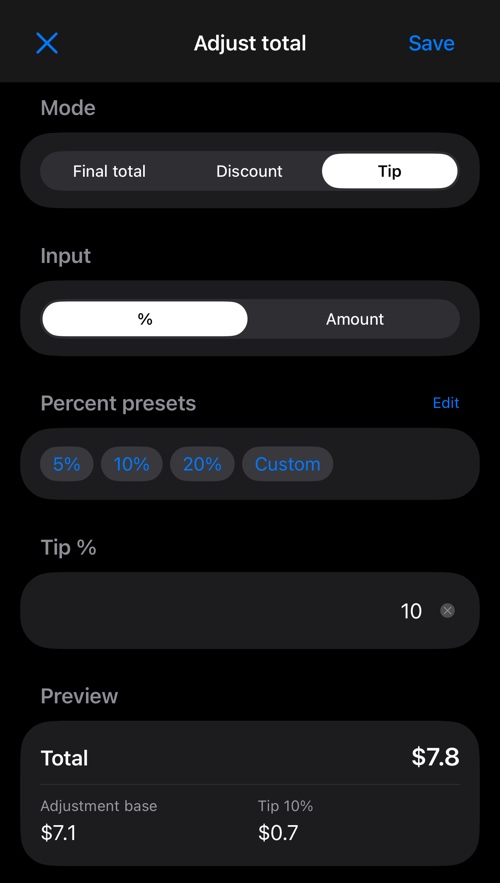
One thing worth knowing: a percentage is taken from the total including tax, not from the metered fare. That figure is spelled out in the preview as Adjustment base, so you never have to guess what the percentage applied to.
Switching between % and Amount does not throw away what you typed — it converts it. A 10% tip on a 7.10 total becomes an amount of 0.70, and switching back turns it into 10% again.
Presets
In percent mode you get one-tap buttons — 5%, 10% and 20% to begin with — and Custom, which simply drops the cursor into the value field so you can type your own.
Tap Edit next to Percent presets to change the buttons.
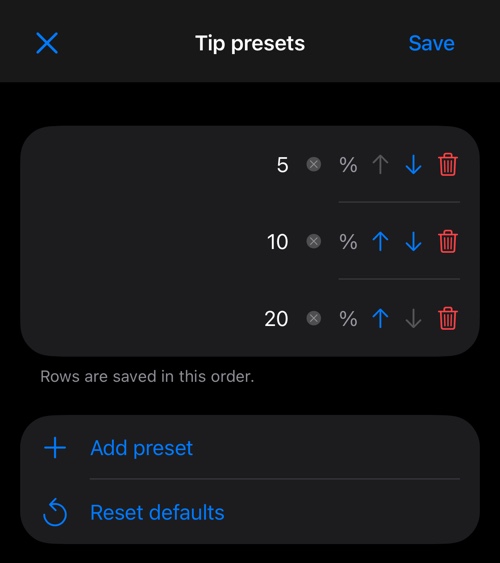
Add rows, delete rows, move them up and down. The order you leave them in is the order they appear on the receipt screen. Reset defaults puts 5, 10 and 20 back.
Discounts and tips keep separate lists, so the discounts you hand out do not have to match the tips you suggest.
The preview, before anything is saved
The preview shows the resulting Total, the Adjustment base it was worked out from, and the adjustment itself. If the trip has already been adjusted once, a Current adjusted total appears next to the base, so you can see where you are starting from rather than where the meter finished.
Nothing is written to the trip until you tap Save. Leaving with ✕ changes nothing.
Tax
This is the part that is easy to get wrong by hand, so the app does it for you:
- A discount lowers the total, and the tax is recalculated on the lowered total using the fare’s own tax rate.
- A tip follows the Tax on tips setting in advanced settings : no tax at all, the same tax as the fare, or a different tax you nominate. More about this in sales tax .
Where a tax applies to the adjustment, the receipt prints its name in brackets after the amount.
Undoing an adjustment
Once a trip carries one, Reset adjustment appears at the bottom of the screen and puts the fare back to what the meter measured.
On the receipt
Both receipts print the adjustment as a line of its own, under your name for it, with the adjusted total below. So does a receipt sent to a Bluetooth printer .
When the total cannot be adjusted
Total is a live button for the trip you are running or have just finished, and for fare calculator estimates. Open a receipt from the trips log later and the total is drawn in plain black and does not respond — that fare is settled. Adjust it before you clear the trip.
On Android
The same screen, with the same three modes, the same percentage presets and the same preview. Nothing to learn twice.
More about receipts:
Simple receipt ▪︎ Detailed receipt ▪︎ Printing ▪︎ Advanced settings ▪︎ Sales tax