Import existing mbtiles, Rmaps, sqlitedb maps
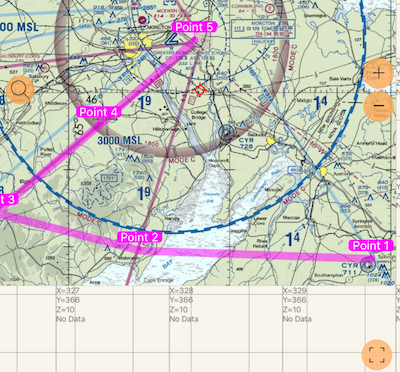
Maps you’ve created in MOBAC or TileMill can now be opened with the app. Supported map formats are Rmaps/.sqlitedb and mbtiles. Here is an example of an Rmap/.sqlitedb map created in MOBAC based on Chartbundle aero maps:
Preparing the map
The app supports import of maps in .mbtiles, .sqlitedb or internal .m5p formats.
.mbtiles or .sqlitedb are quite popular formats in the public domain.
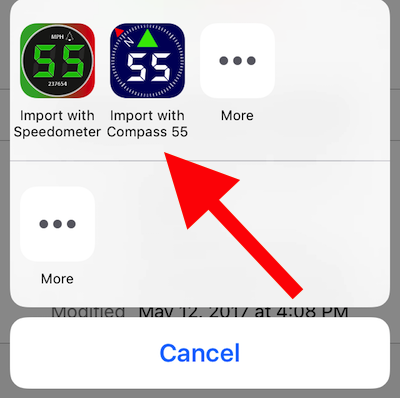
Prepare your map in MOBAC (set Rmaps, sqlitedb or mbtiles as a target format), add it to your iCloud or Dropbox drive and pick Speedometer as an “Import with” option:
You can also tap on any existing map file link on the web (that you know is in Rmaps, mbtiles or sqlitedb format), download it to your iPhone/iPad and use the “Open with” the app option.
If you are ok with using the command line terminal on your computer, you can also convert your existing map (e.g. GeoTiff or PDF) into a format supported by the app
If there is any problem with the map file, the app will let you know. If all goes ok, the app will provide you with the import completion message.
The region editor/viewer for offline maps is now capable of showing waypoints, routes and pinned track. Search by address or coordinate is also available. The bottom right button in the screenshot above allows you to focus on the downloaded map region. This way you’ll have better context to understand where the map is or what region to select for download.
To make the imported map active, tap on the map “layers and settings” button:
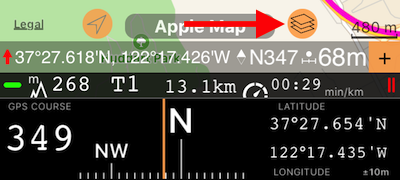
and tap on the imported map row to make it active:
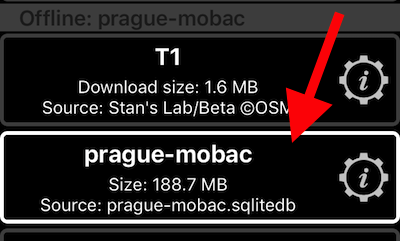
Back on the live map, the label with the map name has turned into a button for the offline map to enable you to focus on the downloaded map region:
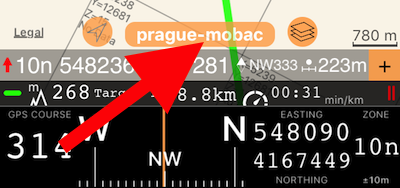
To activate this button, enter the “map browse/edit” mode by tapping on the “follow me or not” triangle button.
Starting with the March 2025 releases, you can open/import offline maps from disk/Files directly in the app.
To open/import the map directly in the app, use the “+” button in the maps settings (list) screen and the new option, “Import offline map”:
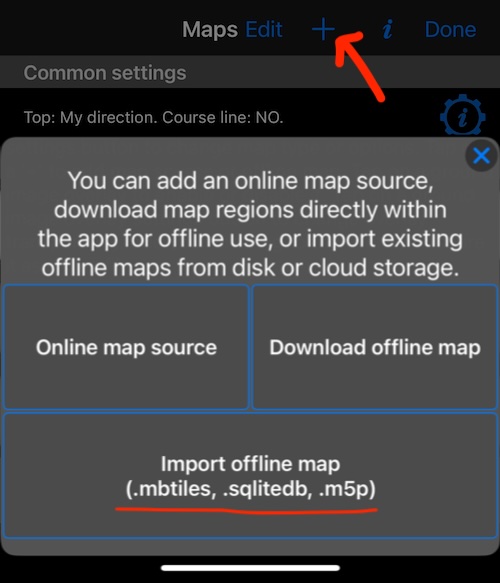
Pick the map file and it will import into the app.
Support for a map overzoom and underzoom in the app makes imported maps with limited zoom levels even more useful.