Follow/Replay the track in the Google Earth and show elevation/speed profiles in the Google Earth.
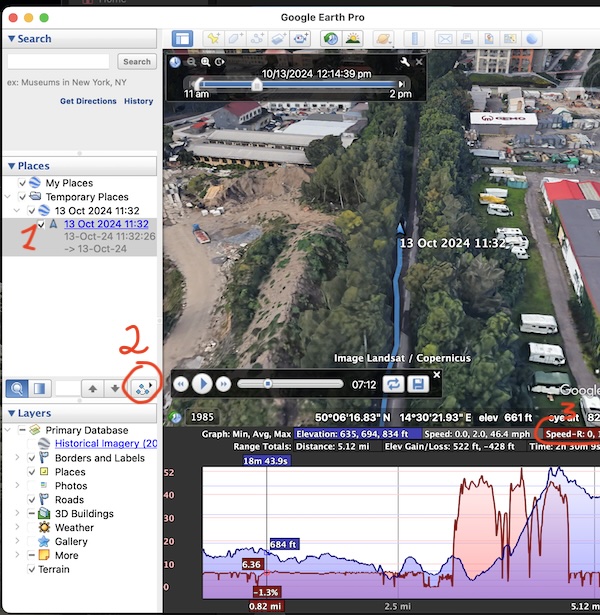
Here is how to switch the elevation profile ON in Google Earth on Mac/PC and use other track browsing features.
Double tap on the Track to select it and show it on the map, and right click to show more options.
Pick “Show elevation profile”
The Google Earth elevation profile has a tab with speed calculated by location changes, but you also have a tab #3 (named Speed-R, please tap on it to activate), with speed recorded by the speedo/iPhone. That can differ quite a lot at some points from the speed calculated by Google.
Use your mouse to move over the speed profile to show value (values for up to 2 selected tabs are shown)
You can re-play the track in Google Earth by clicking on the “play” button.
To be sure you have all of these options in Google Earth, please be sure to export the track from the track view screen as a Google Earth track:
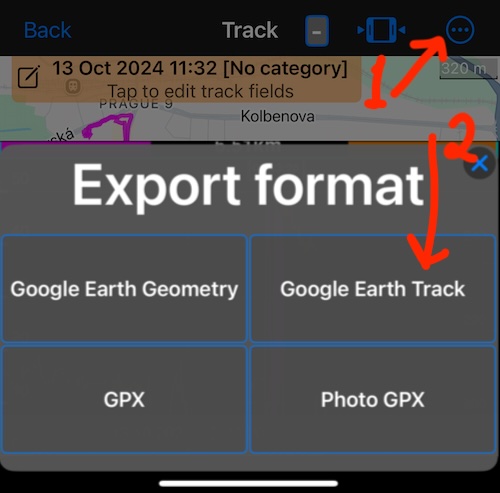
The speed profile in Google Earth is available only for tracks in “Google Earth Track” format, which corresponds to their gx:track syntax.
Tracks exported as gx:track (Google Earth Track) can’t be viewed in the Google Earth app on iPad. This advanced format, which provides speed profiles, is available only in PC/Mac Google Earth versions.
For more export format options, backup strategies, and transferring data to a new device, see: