Compass 55. Bluetooth sensors: heart rate, cycling speed and cadence
Your phone talks to your sensors directly: a heart-rate strap, a speed sensor on the wheel hub and a cadence sensor on the crank. No watch or bike computer is needed in between.
This page has two parts:
- The Bluetooth panel , in the App Store version since 4.0: your sensors' speed, cadence and heart rate live on the dashboard.
- New in the public beta : the readings no longer end on the screen. They are recorded with your tracks, shown on video, and the sensors stay connected by themselves.
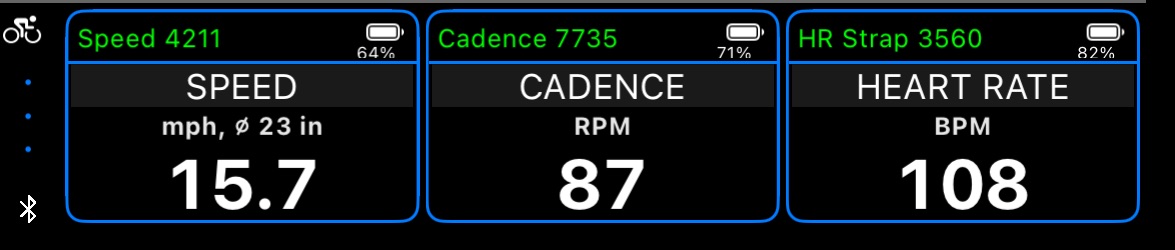
The Bluetooth panel
Which sensors work
- Heart-rate straps using the standard Bluetooth Heart Rate profile: Garmin HRM-Pro and HRM-Dual, Polar H9 and H10, Wahoo TICKR, and most chest straps and armbands.
- Cycling speed and cadence sensors using the standard Bluetooth Cycling Speed and Cadence profile: Garmin Speed and Cadence sensors, Wahoo RPM, Magene, Thinkrider and others.
Most cycling sensors measure one thing at a time. On the wheel hub a sensor measures speed, on the crank arm it measures cadence. So the app has one place for each: Cycling speed, Cycling cadence and Heart rate, each holding one sensor:
- Garmin makes separate sensors, named “SPD” and “CAD”.
- Wahoo RPM and Magene sensors switch mode by where they are mounted.
- A Thinkrider sensor switches mode when you take its battery out and put it back; its name shows the mode (“S-” or “C-").
- A true combined unit, sending both speed and cadence, goes into both places.
Not supported: power meters, indoor-bike “Fitness machine” profiles, and sensors that only speak ANT+.
Open the Bluetooth panel
The Bluetooth panel lives in the dashboard’s small panel area.
- Portrait: swipe left on the panel at the bottom of the dashboard.
- Landscape: swipe up on the panel on the left.
- Or: tap the ⋯ button of that panel, choose Pick what to show here, then Bluetooth cycling sensors.
The panel shows three cards: Speed, Cadence and Heart rate.
Connect a sensor
- Wake the sensor. Put the strap on (a drop of water on the electrodes helps with dry skin). Spin the wheel or turn the crank a few times.
- Tap the card that reads Tap to manage, then Search for sensors. The first time, the app asks for Bluetooth access; allow it.
- Tap Connect next to your sensor. Its name turns green and the values start.
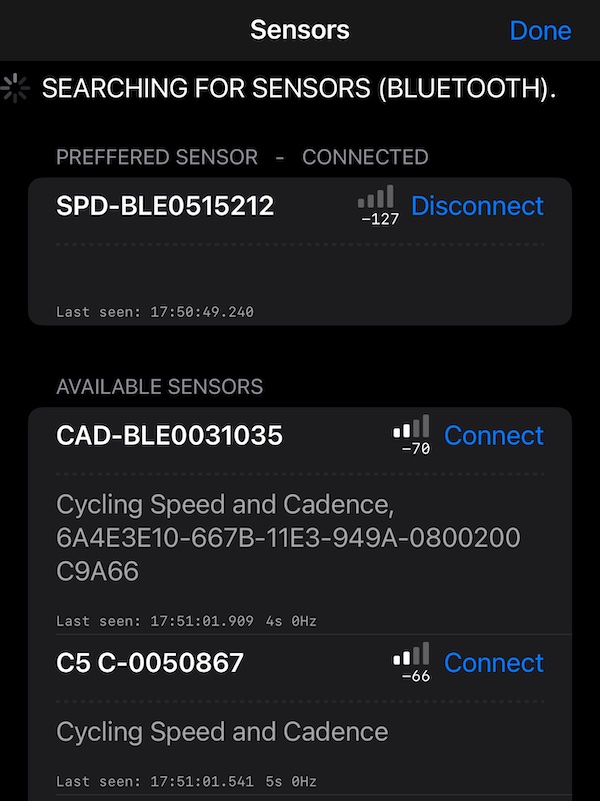
The names tell a sensor’s mode: Garmin’s “SPD” and “CAD”, Thinkrider’s “S-” and “C-”. The app remembers the sensor and connects to it again whenever the Bluetooth panel is on screen.
What the card tells you
The sensor’s name on the card changes color with the connection:
| Name | Means |
|---|---|
| Tap to manage, white | No sensor in this place yet |
| Light grey, “Seeking. Ensure sensor is in range & active.” | Saved, not found yet: asleep, not worn, or out of range |
| Magenta, “Connecting to sensor” | Found, connecting |
| Blue, “Discovering services” | Connected, setting up |
| Green | Connected: values arrive |
| Orange, “Disconnecting from sensor” | Letting go |
| Grey, with a message from iOS | Bluetooth is off, or the app isn’t allowed to use it |
When connected, the card also shows the sensor’s battery level.
Set the wheel diameter
Wheel speed is calculated from the wheel’s revolutions, so the app needs your wheel’s size. Open the Speed card’s menu and choose Set wheel diameter. Enter the measured diameter, in centimeters or inches; speed is the circumference, diameter × π, per revolution. The card shows the diameter in use (for example “ø 23 in”), and the speed follows the app’s speed unit: km/h, mph or knots.
To check it, ride a straight road at a steady speed and compare wheel speed with GPS speed: they should be within a few percent.
Forget a sensor
Open the card’s menu and choose Disconnect & Forget, or Forget when the sensor isn’t connected. The place is free for another sensor.
If something doesn’t work
- The sensor isn’t listed. Make sure it is awake and close. A heart-rate strap needs skin contact, and a speed or cadence sensor needs a few turns. Also check it isn’t already connected to another phone, watch or app: many sensors allow only one or two connections at a time.
- Speed or cadence stays at zero. The sensor is in the other mode, or on the other part of the bike. A speed-mode sensor on the crank sends no speed. Move it, or switch its mode, and put it in the matching place.
- The heart rate keeps showing after you take the strap off. Some straps, the Garmin HRM-Pro among them, keep sending a heart rate for a while off the body until they go to sleep. That is the strap; the app shows what it receives.
- “Access to Bluetooth is denied”. Allow Bluetooth for Compass in the system Settings → Privacy & Security → Bluetooth.
- An indoor bike connects but shows nothing. It advertises the cycling profile but doesn’t deliver it. The app tells you so (“Sensor awaits activity.").
New in the public beta
Everything above keeps working as it does. The public beta adds what happens to the readings beyond the panel.
Recorded with your tracks
Record Bluetooth sensors is on from the start (MENU, the settings button inside NEW TRACK, Motion and audio data). Every track then keeps the readings of the sensors connected while it runs:
- on the chart beside speed and altitude;
- as route colors on the map;
- in the stats, with the maximum and average of each sensor;
- in GPX exports, for Strava, Garmin Connect and other tools.
More in Track data .
On video
Heart rate, cadence and wheel speed become overlays: live on the camera, stamped into the video, and exported as transparent overlay videos, from a recording ( Bluetooth sensors on video ) or from a track ( Overlay videos from a track ).
They stay connected
- A saved sensor connects by itself when it shows up again: when you put the strap on, wake the sensor, come back in range, or turn Bluetooth back on. You don’t need to open the panel or search again.
- While a track records, the sensors stay connected on every screen, in the background and with the phone locked.
- Without a track, leaving the panel keeps the sensors connected for a minute, so a quick look at another screen doesn’t cost a reconnection. Sending the app to the background lets them go.
- Connect waits for a sleeping sensor. If you tap Connect while the sensor is asleep or out of range, the app does not give up. After a few seconds it says Waiting for <name>. Wake the sensor or put it on., and connects as soon as the sensor shows up. Cancel stops the wait.
Something else, or a sensor brand that behaves oddly? Write to support@blocoware.com.
Related: Track data ▪︎ Bluetooth sensors on video ▪︎ Overlay videos from a track ▪︎ Tracks colored by speed, altitude or your sensors
