Siri/Shortcuts Commands
GPS Camera 55 supports Siri and Shortcuts commands for external control and automation.
With this update, the app gains the ability for external control and automation, enabling you to set note fields such as title, note, folder field title (e.g., Folder or Tags), folder/tags, and address. This makes the app a seamless part of your Shortcuts app workflows.
Pre-Created Shortcuts
The following shortcuts are pre-created in the Shortcuts app. Version 5.3 adds two more, for starting and stopping a video recording .
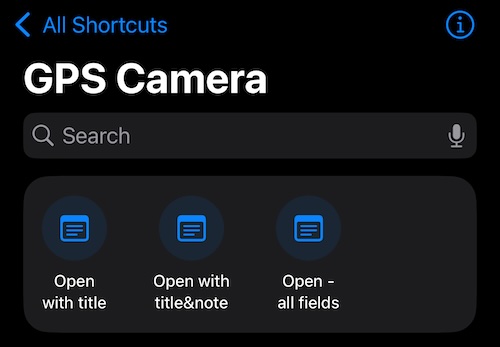
Open with Title
This shortcut has only one parameter: Title. It is well-suited for use with Siri voice commands if needed. This shortcut only sets the Title field in the camera notes.
Siri voice invocation phrase: “Camera with title in GPS Camera.”
Open with Title and Note
This shortcut provides two parameters: Title and Note. While usable, it may not be very practical for Siri voice invocation.
Siri voice invocation phrase: “Camera with title and note in GPS Camera.”
Open - All Fields
This shortcut allows you to set all the camera note fields:
- Title
- Note
- Folder field title (e.g., Folder or Tags)
- Folder/Tags
- Address
Parameters: None of the parameters are mandatory. Missing parameters are handled differently than in the Notes Editor:
- If you do not provide a value for Title, a pattern-based Title is automatically generated instead of reusing a previous value.
- For the Address field, if it was provided in the previous shortcut input but not in the current one, the app automatically resolves the missing address value.
This gives you the flexibility to set only the fields you need while leveraging any relevant input available in the Shortcuts app.
Example:
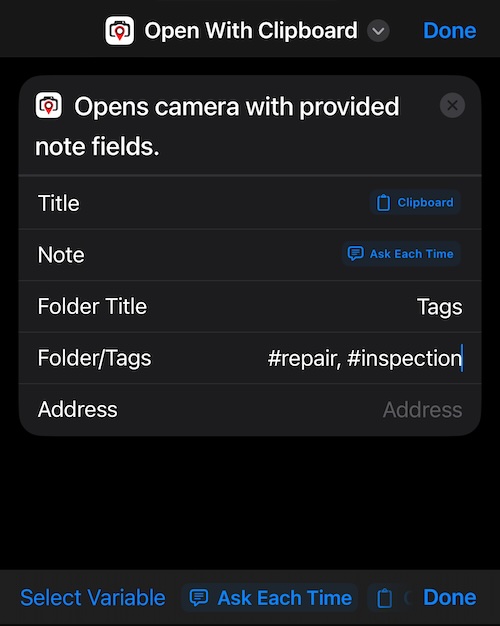
The above example demonstrates the setup of a custom Shortcuts command based on the “Open - All Fields” shortcut:
- Title is taken from the Clipboard.
- Note is being asked for by Siri or Shortcuts app.
- Folder Title and Folder/Tags are populated with hardcoded values.
- Address is determined automatically by the app.
Start and stop recording, hands-free
Two more pre-created shortcuts start and stop a video recording, so a mount, a helmet, or a pair of gloves is no longer between you and the record button.
- Start video recording — Siri voice invocation phrase: “Start video recording in GPS Camera.” or “Record video in GPS Camera.”
- Stop video recording — Siri voice invocation phrase: “Stop video recording in GPS Camera.”
Neither takes a parameter. Both run from Siri, from the Shortcuts app, and from anything else that can run a shortcut — an automation, Back Tap, or the Action button.
Starting opens the app. Video capture is foreground-only: the app finalizes any recording the moment it goes to the background, so there is no way to record from a shortcut without the camera on screen. The command therefore brings the app forward, opens the camera in video mode if it was not already there, and begins recording as soon as the capture session is live. That works from a cold launch too — Siri answers Opening the camera to start recording, and the recording starts once the app is frontmost and nothing is covering it, Siri’s own reply included.
If the camera screen is open but buried under settings or the video library, the app uncovers it first. The held command is only honored for 30 seconds: after that the screen belongs to whatever you did next, and a recording that began on its own would be a surprise rather than an answer.
Stopping does not open the app, because leaving the app would already have finalized the recording. A stop command therefore reaches a recording only while the camera screen is still frontmost. From the Lock Screen, from another app, or with the camera closed there is nothing left to stop — the recording was saved when the app went to the background.
Three things to know before you rely on it.
Siri may stay on screen, and the recording waits for it to go. After it has spoken, Siri often leaves its reply over the camera. The app is open underneath, but the screen still belongs to Siri, and recording does not begin until it is gone. Tell it to dismiss itself — “Dismiss yourself”, in whichever language you speak to Siri — and it disappears and the recording starts; a tap on the screen does the same, at the cost of the hands-free part. The command is only held for 30 seconds, so if the screen is not free by then, use the record button.
Say it out loud and the recording may start without sound. If Siri is still holding the microphone when the recording begins, the recording does not get it and the clip is silent. Whether that happens depends on how soon the recording starts after you stop speaking, so it is not something you can count on either way. When the audio matters, run the same shortcut without speaking — from the Shortcuts app, an automation, Back Tap, or the Action button — or start the recording in the app.
A PIN-protected app cannot be woken by a shortcut. With
Protect access to the appset to YES, the app locks every time it leaves the screen, so a start command that has to bring it forward arrives at the PIN screen and refuses rather than recording from behind the lock — Siri answers Unlock the app on your iPhone first. Hands-free recording therefore works only while the app is already open and unlocked for this session, however you unlocked it. See Lock access with PIN and biometrics .
What Siri answers, and what it means:
| Reply | What happened |
|---|---|
| Started video recording | Recording began on the camera screen that was already open. |
| Opening the camera to start recording | The app is coming forward; recording starts once the camera is live and nothing covers it — Siri’s own reply included. |
| Stopped video recording | The recording was stopped and saved. |
| Video recording is already in progress. | Nothing to do — a recording was already running. |
| No video is being recorded in the app. | Nothing was recording, or it had already been saved. |
| The camera is busy. | The camera was finishing a save or was otherwise unavailable. Try again in a moment. |
| Continue in the app. | Something needs a tap on the screen — the free version’s one-video limit, or the microphone permission. |
| Unlock the app on your iPhone first. | App locking is on and this session has not been unlocked. A voice command never records from behind the password screen. |
Both commands need iOS 16 or later. See Video recording, replay, and data overlays for everything the recording itself does.
Experiment and Share Feedback
The current functionality serves as an enabler, allowing you to experiment, automate, and build your workflows. If you encounter challenges or have feedback, please reach out to us at support@blocoware.com. We’re listening and eager to help!
This current functionality should also enable the app to integrate with Apple Intelligence workflows. More advanced integration will be introduced throughout 2025.