Drawing tools
This page describes drawing tools as of app version 5.1 (mid-May 2026).
Drawing tools
The following drawing tools are available for photo annotation:
- Freehand drawing
- Rectangle
- Circle (Ellipse)
- Arrow
- Cross pointer
- Double arrow (from version 5.1)
- Text (from version 5.1)
- Dimension (from version 5.1)
- Selection (from version 5.1)
To enter drawing mode, tap the “drawing annotation” button in the photo preview:
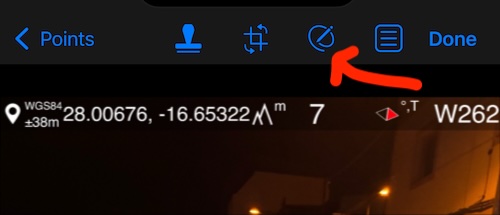
Pinch the photo to zoom in or out and get the right canvas for your drawing.
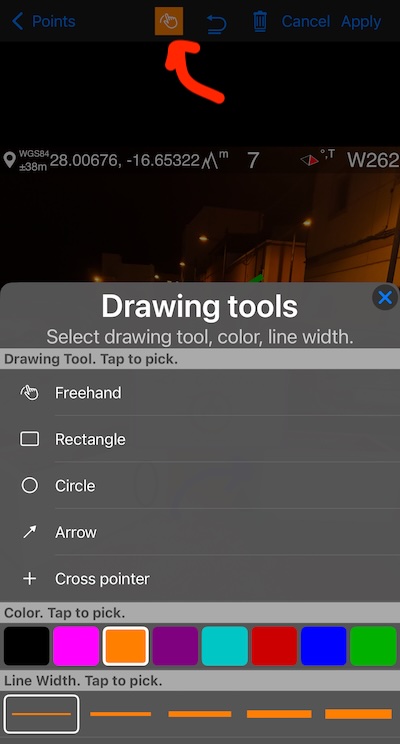
To change the drawing tool, color, or line width from the default settings, tap the tool/color selector button:

In this menu you can pick the tool, stroke and background color and transparency, stroke size, define favorite colors:
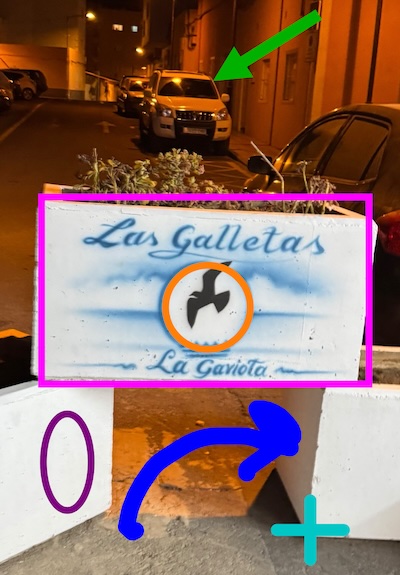
Here is an example showing all tools used on one photo:
While in drawing mode, you can use the Undo button to remove drawings one by one, or the Clear button to remove all drawings added during the current session.
From version 5.1, to change a drawing’s stroke, background, or attached text, use the Selection tool — no need to undo.
To attach text to a drawing, either tap the drawing while the Text tool is active, or use the Selection tool to select the drawing and then tap the Text button to attach or change the text.
From version 5.1, tapping Apply saves all drawings added during the session into the photo metadata instead of merging them into the photo as before. This lets you edit the drawings later when you reopen the photo.
Selection tool
The Selection tool lets you select drawings created from version 5.1 and change their stroke, background, or attached text properties.
Tap the selection toolbar button to enter selection mode. Then tap a shape or drawing to select it. Use the rotate or size hints to rotate or resize, and drag the selection to move it. Tap the format button to change stroke or background properties. Tap the text tool button to change or assign the text attached to the drawing.
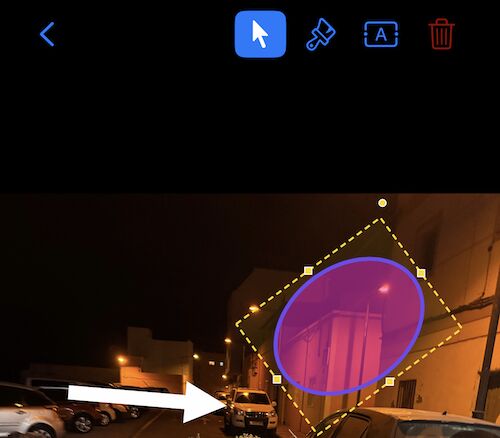
You can also select the text attached to a drawing separately and move it as needed. To change the text size, use the stroke size in the text format properties.
To exit selection mode, tap the selection toolbar button again.
Crop, tilt and resize
To crop/tilt/resize the photo, use the crop button in the photo preview:

Settings backup and restore
From version 5.1, your stroke color, background color, and favorite color preferences are included in the settings backup and will be restored when you restore or import settings:
Video walkthrough of drawing tools improvements in version 5.1, English